

Read conversations
Read every transcript, see what each visitor looked at and what the agent learned, and teach the agent answers it was missing.
Conversations in the sidebar is the full record of every buyer conversation your agent has had. Use it to read transcripts and check what a visitor viewed. You can also teach the agent answers it was missing, so the next buyer gets one.
This article covers finding and reading conversations, and adding a missing answer.
You're in the right place when you want one visitor's conversation in full. For totals and trends, use Insights → Conversations instead.
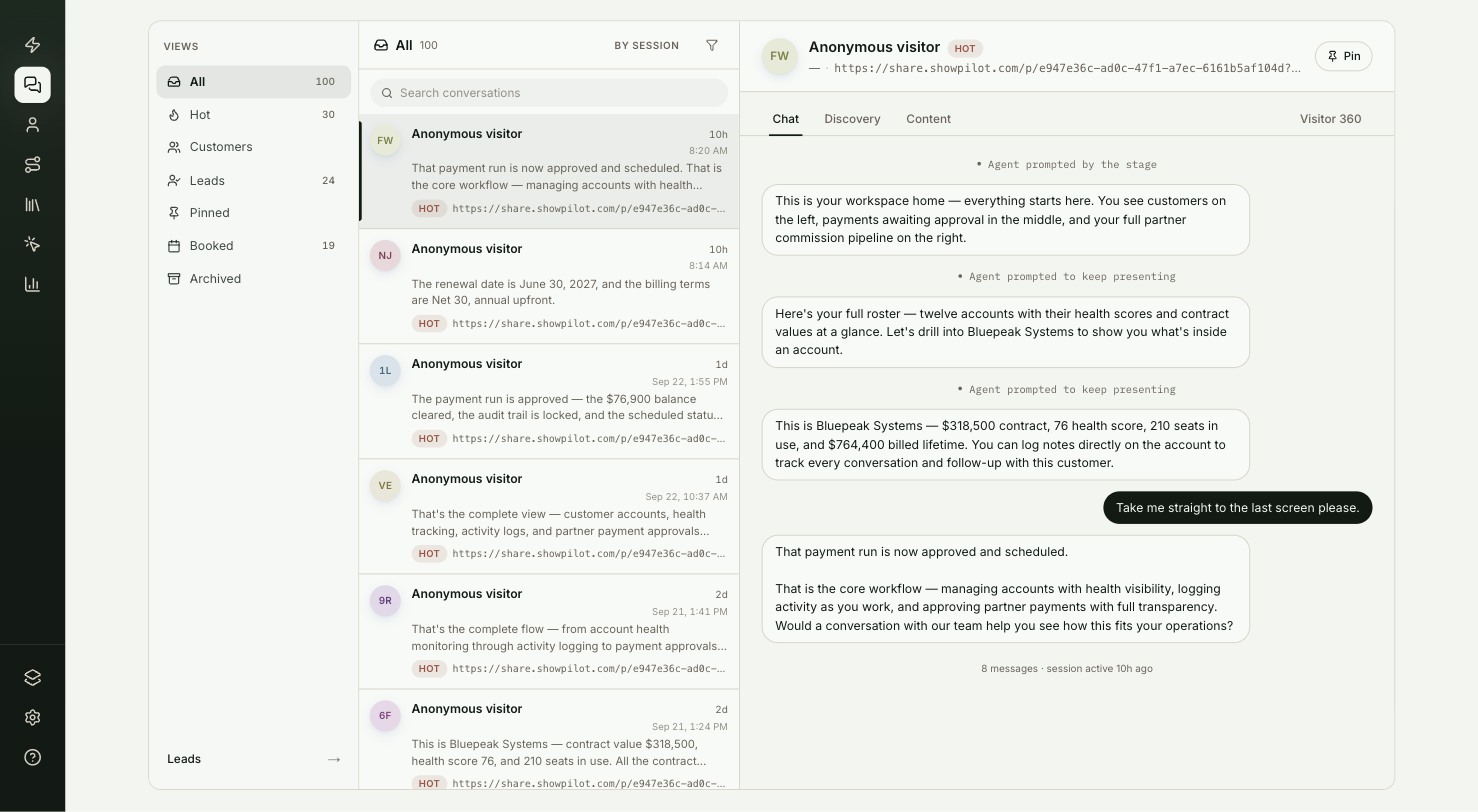
How do you find a conversation?
The inbox has three columns: Views on the left, the list of conversations in the middle, and the open conversation on the right.
| View | What it holds |
|---|---|
| All | Every conversation that isn't archived. |
| Hot | The most urgent right now. |
| Customers | Visitors from existing customer accounts. |
| Leads | Visitors who left their details or booked a meeting. |
| Pinned | Conversations your team flagged for follow-up. |
| Booked | Conversations where the agent booked a meeting. |
| Archived | Conversations you've archived. |
To narrow the list:
- Type in Search conversations.
- Select the filter button for Engagement, Agent (when you have more than one), Range and CRM sync.
- Switch between By session and By account to group conversations from the same company.
Selecting Conversations on a row in Inbound → Leads opens the inbox filtered to that person's company.
What does an open conversation show?
Select a conversation to open it. The tabs show:
- Chat: the full transcript, including moments such as an email given, a form submitted or a meeting booked.
- Discovery: the answers to the agent's question set, if the agent uses one.
- Content: the pages they viewed, the content they opened and the offers they saw.
- Visitor 360: who the visitor is, how they were identified, their visits and pages, and how they fit your ideal customer.
How do you pin and archive conversations?
Hover over a conversation in the list to Pin or Archive it. To act on several at once, select them and use Pin or Archive in the bar that appears. Archived conversations move to the Archived view.
How do you teach the agent a missing answer?
When the agent couldn't answer a question, it shows under Knowledge gaps on the Visitor 360 tab.
- Select Add answer next to the question.
- Write the answer the agent should give.
- Select Add to knowledge base.
The answer is added to that agent's knowledge, so next time it can answer instead of passing the question on. To email the answer to the visitor who asked, use Follow-ups.
Test it
Confirm conversations are coming through:
- Chat with your agent on your site as a test visitor.
- Open Conversations. Your conversation appears at the top of All, and Chat shows the full transcript.
Frequently asked questions
Does adding an answer email the visitor who asked?
No. It adds the answer to that agent's knowledge. To email the answer to the visitor, use Follow-ups.
Where do archived conversations go?
To the Archived view. All shows every conversation that isn't archived.
Can I see all conversations from one company together?
Yes. Switch to By account to group conversations from the same company.