

Keep knowledge current
Choose how often a dataset re-checks your website, refresh it on demand, and read the status line to see what changed.
Your website changes, and your agent should change with it. An agent that quotes last quarter's pricing or a retired feature costs you credibility with the buyer in front of it. ShowPilot re-checks the pages your agent learned from and updates the ones that changed, so answers stay in step with your site.
This article covers the Automatic updates setting on a shared dataset, refreshing on demand, and reading what each check found.
What does a re-check do?
A re-check re-reads each website page in the dataset. Pages that haven't changed are left alone. Pages that changed are read again, and the agent answers from the new version as soon as they show Ready.
What a check can find depends on how the dataset follows your site. The text under Automatic updates tells you which case you're in:
| The card says | What a check covers |
|---|---|
| "Your added pages are re-checked automatically." | The pages already in the dataset. New pages on your site aren't added on their own. |
| "…new, changed, and removed pages are picked up automatically." | Your whole site. New pages are added, and pages that are gone from your site are archived. |
Snippets and PDFs aren't part of a re-check. They change only when you edit or replace them.
Where do you find the update settings?
Go to Knowledge in the sidebar and open a dataset. The Automatic updates card sits at the top of the page, above the list of sources.
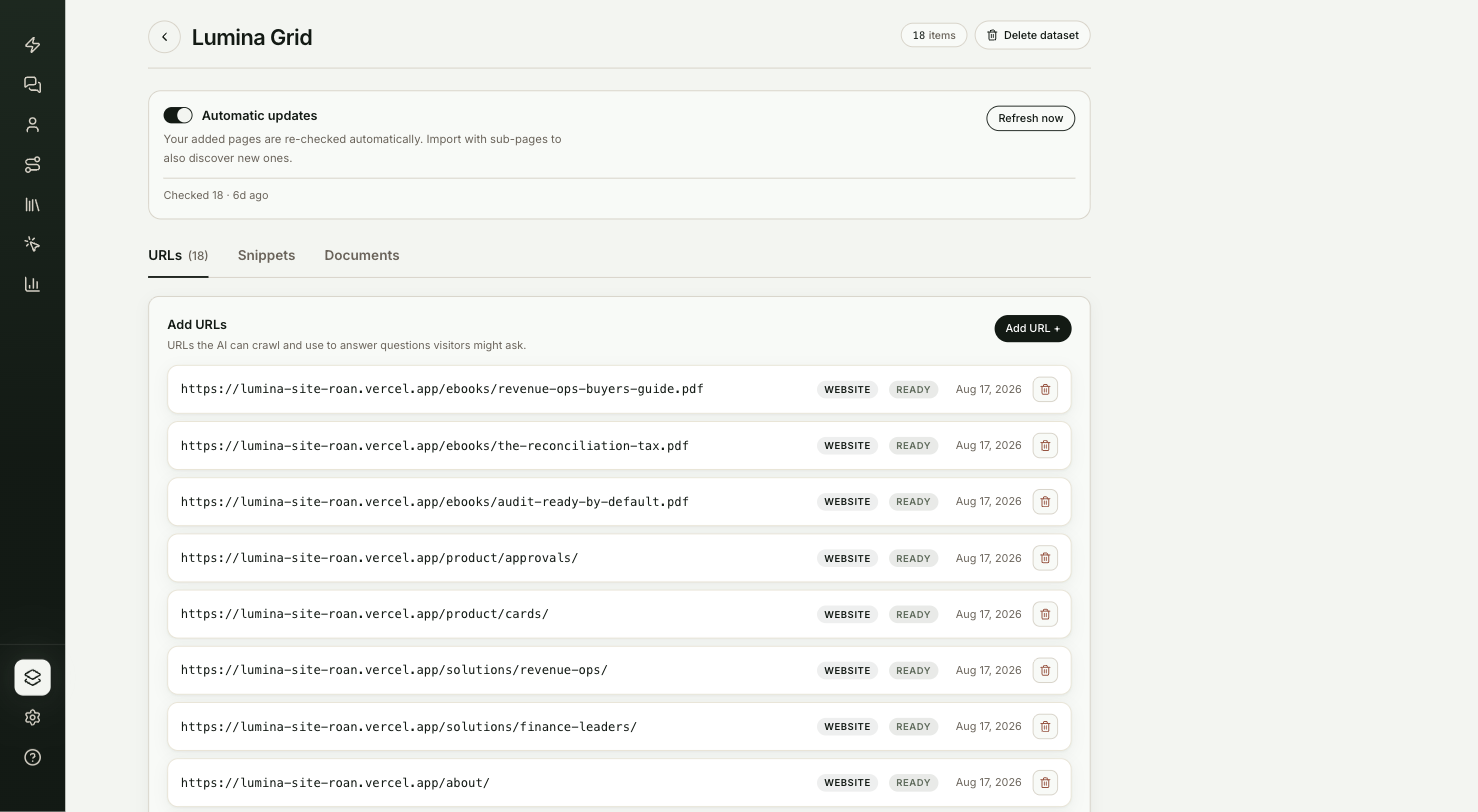
Pages on an agent's own Training tab are re-checked automatically too. The controls for changing how often live on shared datasets only.
You're in the right place when an answer is out of date, or you want to control how often ShowPilot checks your site.
What do you need before you start?
- A dataset with at least one website page. See Add knowledge.
How do you choose how a dataset stays up to date?
Open the dataset
Go to Knowledge, then select the dataset.
Leave Automatic updates on, or pick a schedule
Automatic updates is on for new datasets. ShowPilot checks the pages on its own. For a dataset that follows your whole site, it also watches your sitemap for new and changed pages.
To control the timing yourself, turn Automatic updates off. A row appears: Or check on a schedule:. Pick Daily, Weekly or Monthly. Only changed pages are updated.
To freeze the dataset, pick Off. The dataset then changes only when you select Refresh now.
Changes to this setting save as soon as you make them.
Refresh now when you need it
After you publish a new page or change an important one, select Refresh now. ShowPilot starts a full check straight away, whatever the schedule. The button is unavailable while a check is already running, or when the dataset has no website pages.
Read the status line
The line at the bottom of the card shows what the last check did:
| Status line | What it means |
|---|---|
| Checking pages… N in flight | A check is running. Pages show Queued or Indexing until they're done. |
| Checked N · N new · N removed | The last check, with how many pages it found new or removed, and when it ran. |
| N unverified — kept | The check couldn't confirm these pages still exist, so it kept them instead of removing them. |
| Frozen — updates only when you refresh manually. | The schedule is Off. |
| No checks yet. | No check has run since you added pages. |
How do you pull one source out of answers?
To stop the agent using one page without waiting for a check:
- Delete it. Select the trash icon on its row on the Training tab or the dataset page.
- Archive it from Coach. On the agent's Coach tab, expand an answer to see its sources and archive the one that's wrong. The source shows Archived on the Training tab. Select Restore on its row to put it back into answers.
Test it
Your knowledge is current when:
- You change a page on your website, then select Refresh now on the dataset.
- The status line shows Checking pages…, then a new Checked line with the time.
- On the agent's Coach tab, a question about that page gets the new answer.
Troubleshooting
| Issue | What to check |
|---|---|
| Refresh now is greyed out | A check is already running, or the dataset has no website pages. Wait for the status line to finish, or add a page. |
| A new page on your site never appears | If the card says "Your added pages are re-checked automatically", new pages aren't added on their own. Add the page with Add URL +. |
| The agent still gives the old answer after a check | Check the page shows Ready. Then open the page in a private window to confirm the live site shows the change. |
| Pages show unverified — kept | The check couldn't reach part of your site. The pages stay in answers. Select Refresh now later to check again. |
| The dataset never changes | Check the schedule isn't Off. The status line reads Frozen when it is. |
Frequently asked questions
Does my agent keep answering during a re-check?
Yes. A re-check runs in the background, and your agent keeps answering from the current version of each page until the new one is Ready.
Can I set a schedule for an agent's own Training tab?
No. Pages on the Training tab are re-checked automatically. To choose a schedule, move the content into a shared dataset and attach it to the agent.
What happens to pages removed from my website?
For a dataset that follows your whole site, a check archives pages that are gone, and the agent stops using them. If a check can't reach much of your site, it keeps the pages and marks them unverified — kept instead.
Do I need to publish the agent after a refresh?
No. Updated pages reach visitors as soon as they show Ready.