

Preview and publish
Test your changes on your own site before visitors see them, publish when you're ready, and restore an earlier version if you need to.
Publishing is how you control what buyers hear from your agent. Every edit stays a draft until you choose to release it, so you can test changes on your real site first and roll back to any earlier version.
This article covers testing answers on the Coach tab and previewing the draft on your site. It then covers publishing, and restoring an earlier revision.
What needs a publish?
Everything you change in the agent editor is a draft. Visitors keep getting the published version until you select Publish.
| Change | Reaches visitors |
|---|---|
| Persona, voice and appearance, greeting, call-to-action, meeting booking, discovery set, default content playlist, skills, system prompt and scripts | After you publish. |
| Knowledge on the Training tab and in shared datasets | As soon as it's indexed. |
| The items inside a playlist or a discovery set | As soon as you save. |
| Links on the CTAs tab and the Tours card on the Persona tab | As soon as you save. |
Deploying an agent that has never been published publishes it for you as revision 1.
What do you need before you start?
- An agent. To preview it on your site, you also need at least one site in ShowPilot. See Choose where your agent appears.
How do you preview, test and publish?
Check what's live
The line under the agent's name at the top of the editor tells you where you stand:
- Not published means visitors never see this agent.
- Rev 3 live · unpublished changes means visitors get revision 3, and your draft has changes they don't see yet.
When the draft matches what's live, the top right shows Live · Rev 3 in place of the Publish button.

Test answers on the Coach tab
Open the Coach tab, type a question in the box and select Test. The draft agent answers, using your latest knowledge and settings. Until the agent has real conversations, try the starter questions it offers. Once it's live, select Find gaps to pull in the questions it couldn't answer for real visitors, most-asked first.
On each answer:
- Select Good if the answer is right.
- Select Coach if it's wrong. Write what the agent should have said, or pick Snippet, Rule or Guardrail to add that kind of fix. Select Preview fix to see the changes, then Approve & verify. ShowPilot applies the fix and asks the question again to check it held.
- Select Re-test to ask again after other changes.
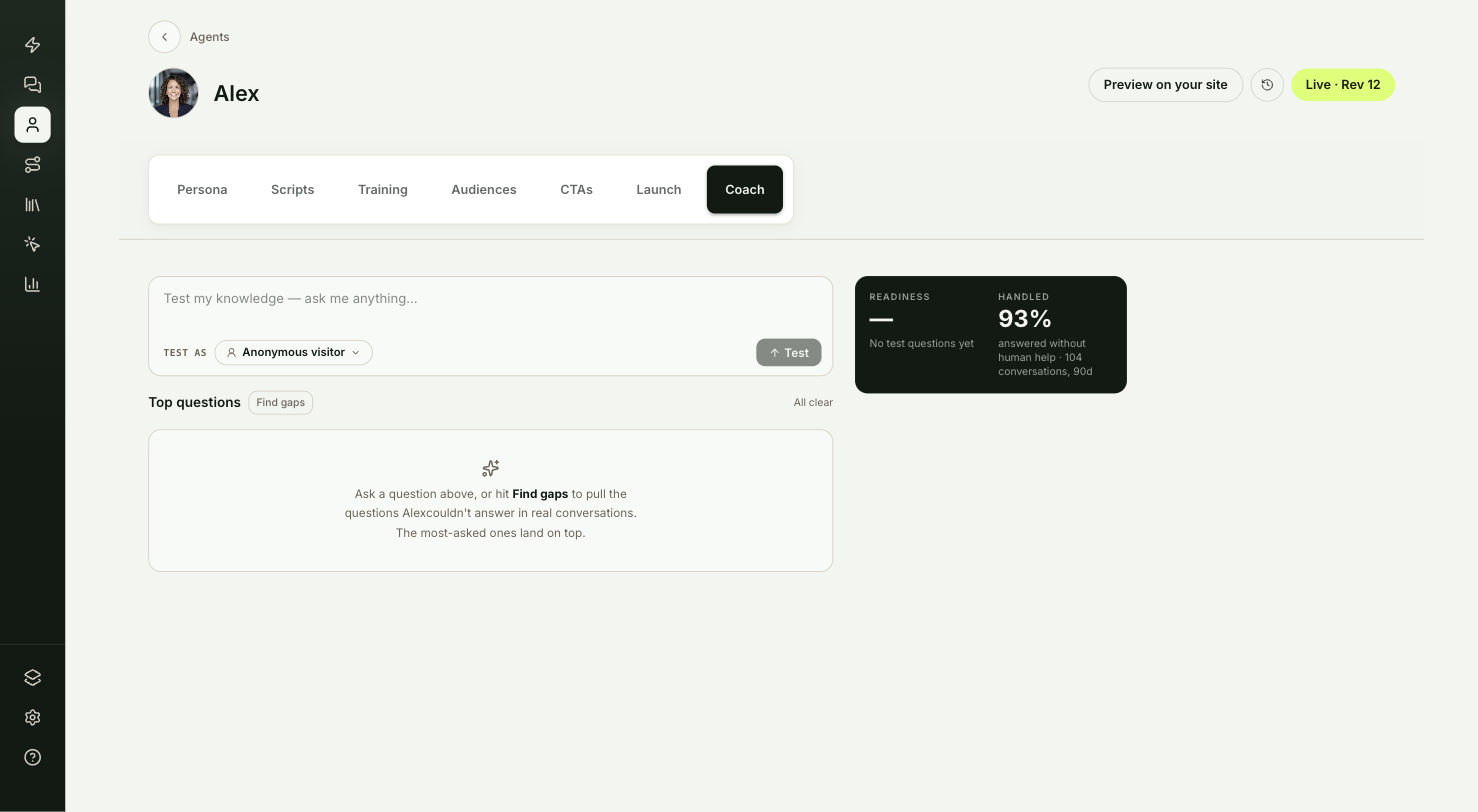
Preview on your site
Select Preview on your site. If you have several sites, select Preview on… and pick one. Sites where the agent is already deployed are marked live here.
Your site opens in a new tab with the draft agent, even on a site where the agent isn't deployed yet. Only you see the draft, and visitors keep the published version. The preview link works for 7 days. To leave preview mode, add ?sp_agent_preview=off to the page address.
If you have no sites yet, the button reads Deploy to preview and takes you to Deployments.
Publish
Select Publish. From then on, visitors get the new version, and the top right changes to Live · Rev with the new number.
Test it
The new version is live for visitors when:
- Your site, opened in a private browser window, shows the agent the way a new visitor sees it.
- A conversation there behaves the way your draft did in the preview.
How do you restore an earlier version?
Select the history button (the clock icon) next to Publish. The list shows every revision with its date and time, and marks the one that's live. Select an earlier revision and confirm Restore.
Visitors get that revision right away. ShowPilot saves the restore as a new revision, so your history stays complete, and your draft stays as it was.
Troubleshooting
| Issue | What to check |
|---|---|
| Preview shows the published agent | Check that the page address includes the preview link, and that you opened it from Preview on your site in the last 7 days. |
| Voice calls in preview sound like the published agent | Voice calls always use the published version. Publish to test a voice change. |
| The button reads Deploy to preview | You have no sites yet. It takes you to Deployments to add one. |
| You're stuck in preview mode | Add ?sp_agent_preview=off to the page address. |
Frequently asked questions
How long does a preview link last?
7 days.
Can other people see my draft while I preview it?
No. Only you see the draft, and visitors keep the published version.
Does restoring a revision change my draft?
No. Visitors get the restored revision right away, and your draft stays as it was. The restore is saved as a new revision.
Do I need to publish after adding knowledge?
No. Knowledge reaches visitors as soon as it's indexed.