

Voice and video avatar
Pick your agent's face, voice and on-call appearance, and tune how it pronounces your product names.
Voice and video let your agent hold a spoken conversation with a buyer, the way a rep would on a call. Visitors can talk to your agent out loud as well as type, and see a face while it speaks.
This article covers choosing what the agent looks like while it talks and which voice it uses. It also covers how it handles the words that are specific to your business.
Where do you set up voice and appearance?
| Setting | Where it lives |
|---|---|
| Voice and on-call appearance | The agent's Persona tab. |
| Profile, greeter video and avatar image | The Identity card on the agent's Persona tab. |
| Voice profiles (speech tuning and pronunciations) | Settings → Voice. |
What do you need before you start?
- An agent. See Create an agent.
How do you set up voice and appearance?
Turn on voice
On the Persona tab, find the Voice card and turn on the switch. It reads Voice mode enabled when it's on.
Pick a voice under TTS voice. Each option lists the voice's name, accent and style. Select Preview to hear a short sample.
Choose how the agent appears on calls
In the Identity card, under On-call appearance, pick one:
| Option | What visitors see |
|---|---|
| Video greeter + voice | An optional short intro clip plays, then the agent speaks with its voice. This is the default. |
| Live video avatar | A lip-synced face appears for the whole call. It needs voice turned on. |
| Beam | The agent stands on the page itself, with no chat frame. It works only with some profiles. If the one you picked doesn't support it, the option explains why. |
Live video avatar and Beam are marked Premium.
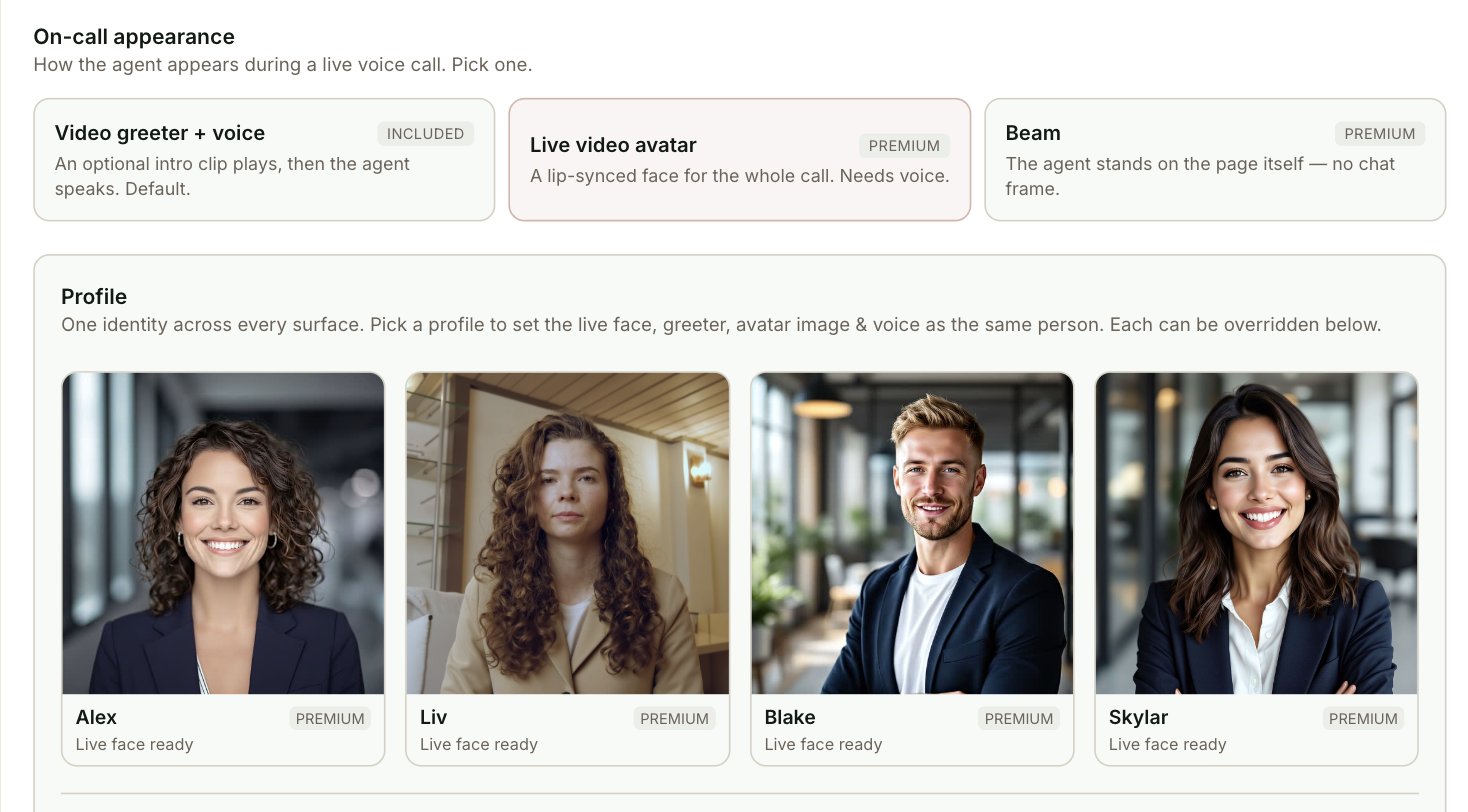
Pick a profile
Under Profile, select a person. One pick sets the matching greeter video, avatar image and voice, so they all look and sound like the same person. With a live video avatar, it also sets the live face. Each tile shows whether its live face is ready.
With a live video avatar, the voice follows the face. To change the voice, pick a different profile.
Adjust the greeter and avatar (optional)
With Video greeter + voice, the Video greeter switch turns the intro clip on or off. Select Upload under Your own to use your own clip instead, as a .webm or .mp4 file up to 10 MB.
Select Choose image to change the still avatar image. Square JPG, PNG or WebP photos up to 5 MB work best.
Tune pronunciation
On the Voice card, Speech tuning profile picks how the voice behaves. Every workspace has a Default profile. Select Manage in Settings → Voice to edit it or create another with New profile. In a profile you can set:
- Speech rate, Volume and Expressiveness, each with a sample you can play.
- Pronunciations: a phrase and how it should be spoken, such as "SaaS" spoken as "sass".
- Listen for: product names and terms the agent should hear correctly when a visitor says them.
- Advanced: Interruption sensitivity and Idle disconnect, which ends a call after a stretch of silence.
Profiles save automatically, and every agent that uses the profile gets the change.
Then select Publish so visitors get the new voice and appearance.
Test it
Voice is ready for visitors when:
- In Settings → Voice, Test a sentence plays a line with your product names spoken the way you want.
- After you publish, a voice conversation on your site uses the new voice. Voice calls always use the published agent, including in a draft preview.
- When you say a product name from your Listen for list, the agent understands it.
Troubleshooting
| Issue | What to check |
|---|---|
| The TTS voice list is greyed out | Voice mode is off, or the agent uses a live video avatar, where the voice comes from the profile. |
| The live face doesn't appear | Check that voice is on, and that the profile tile says Live face ready. |
| Beam can't be selected | It works only with some profiles. The option explains why the one you picked doesn't support it. |
| A voice change doesn't show in preview | Voice calls always use the published agent. Publish to test a voice change. |
| The agent mishears a product name | Add it to Listen for in the agent's speech tuning profile. |
Frequently asked questions
Can I use my own greeter video?
Yes. Under Your own, select Upload and pick a .webm or .mp4 file up to 10 MB.
Why can't I change the voice with a live video avatar?
With a live video avatar, the voice follows the face. Pick a different profile to change the voice.
Does editing a speech tuning profile affect other agents?
Yes. Profiles save automatically, and every agent that uses the profile gets the change.