

Choose where your agent appears
Deploy an agent to your whole site or to specific pages, pick how it shows up and when, and pause it any time.
Where and when your agent appears decides which buyers it reaches. A deployment lets you put the right agent on the right pages, such as a pricing specialist on your pricing page, and choose the moment it steps in.
This article covers deploying and managing agents on your site. It also explains what happens when two deployments cover the same page.
What is a deployment?
A deployment puts one agent on one site, on the whole site or on the pages you list. Each deployment also sets how the agent shows up and when it appears. You can run different agents on different pages of the same site.
Visitors only see an agent where it is deployed and where the ShowPilot web tag is installed. To install the tag, see Put your agent on your site.
Where do you deploy an agent?
| Place | Use it for |
|---|---|
| Agents → Deployments | Every agent on every site, with all the options. |
| The Launch tab in an agent's editor | A shortcut for putting that one agent on a site. |
What do you need before you start?
- An agent. If it has never been published, deploying it publishes it for you as revision 1.
- Your website's domain, such as
acme.com.
How do you deploy an agent?
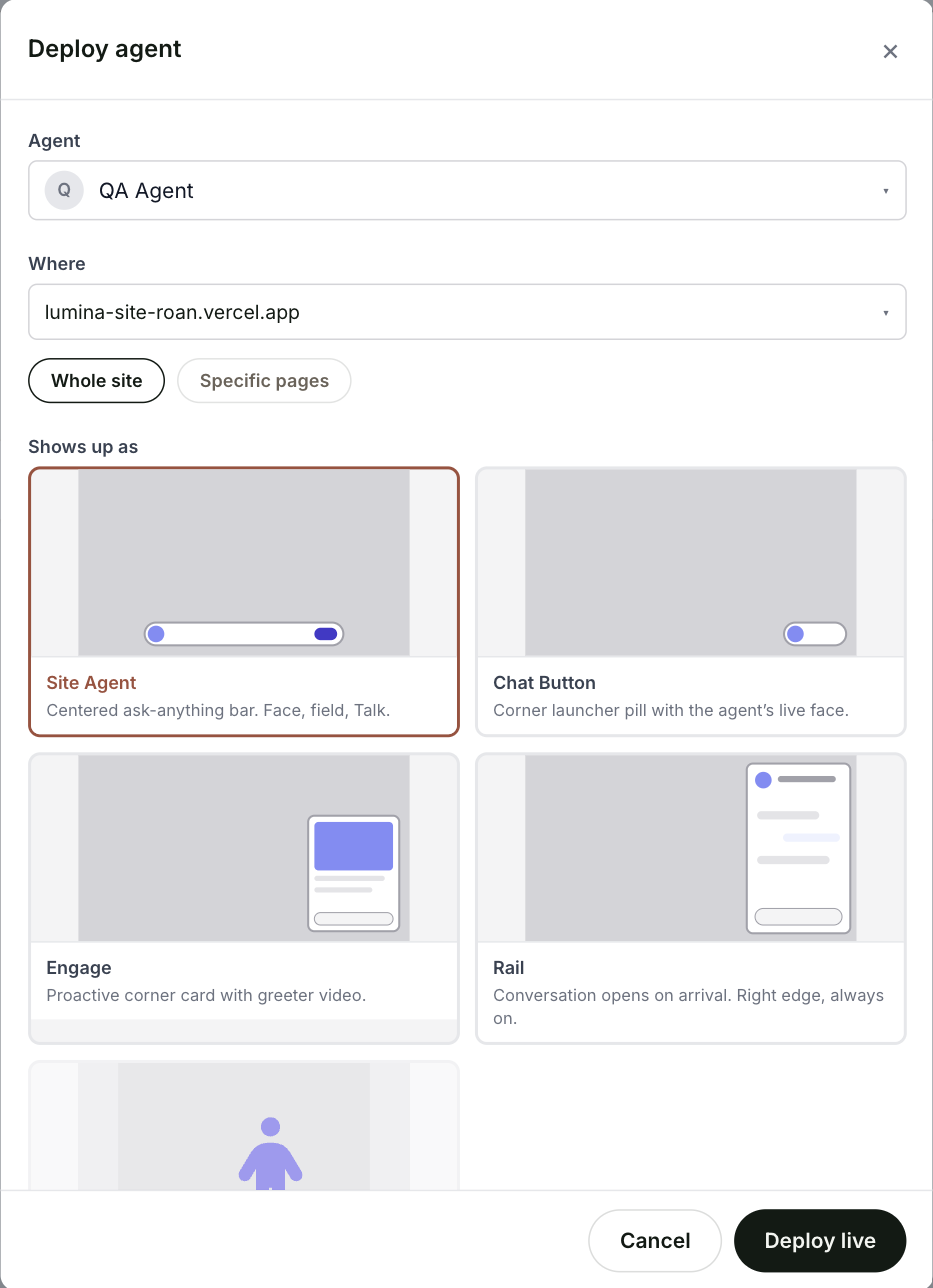
Pick the agent and the site
Under Agent, pick the agent. Under Where, pick one of your sites, or select Add a new site… and type the domain. You don't need to type https://.
Pick the pages
Select Whole site, or Specific pages and list the paths, one per line:
/pricingmatches that page only./blog/*matches every page under/blog.
Pick how it shows up
Under Shows up as, pick a layout:
| Layout | What visitors see |
|---|---|
| Site Agent | A centered ask-anything bar with the agent's face. |
| Chat Button | A launcher in the corner with the agent's live face. |
| Engage | A card in the corner that opens on its own, with the greeter video. |
| Rail | The conversation opens on arrival along the right edge and stays open. |
| Beam | The agent appears on the page itself, outside the chat window. Only available for agents set up for it. See Voice and video avatar. |
The phone, tablet and desktop previews below the options show the layout you picked.
Pick when it appears (optional)
Select When to change the moment the agent appears. The default is When the page loads. You can also pick:
- After time on page, after a number of seconds.
- At scroll depth, when the visitor has scrolled a share of the page.
- On exit intent, when the visitor looks ready to leave.
- From a campaign link, when the page address carries a campaign tag you choose, such as a campaign value of
spring-launch.
Deploy it
Select Deploy live. If the site is new to ShowPilot, a window shows the web tag. If the tag is already on the site, the agent is live now. If not, install it: see Put your agent on your site.
Test it
The deployment is working when:
- A page the deployment covers, opened in a private browser window, shows the agent.
- The agent appears in the layout and at the moment you picked.
- On Deployments, the deployment's row starts counting how often the agent was shown and accepted. Until there's data, it reads "collecting…".
How do you manage deployments?
| Action | How |
|---|---|
| Group the list | Select By site or By agent. |
| Pause a deployment | Select its Live button. It changes to Paused, and the agent stops appearing there. Select it again to resume. |
| Edit a deployment | Select the pencil icon. |
| Remove a deployment | Select the trash icon. Removing a deployment leaves the site and its other deployments as they are. |
What happens when two deployments cover the same page?
Only one agent appears on a page at a time. When two live deployments could both appear, ShowPilot picks one in this order:
- A deployment set to From a campaign link, when the visitor arrived through that link.
- The more specific page match. A single page beats a
/*path, which beats the whole site. - The newest deployment.
Overlapping rows show a short note on which deployment wins and why.
How do you deploy from the agent editor?
In the agent's editor, open the Launch tab. Pick Whole site or Specific pages, pick a domain and select Go live. To use a domain that isn't listed yet, select new, enter it and select Go live. ShowPilot adds the domain; then pick it in the list and select Go live again. The Where this agent runs card lists each place the agent is live.
For timing options such as scroll depth, pick Advanced to open Settings → Targeting, or use Agents → Deployments as described above.
Troubleshooting
| Issue | What to check |
|---|---|
| The agent is paused | Check the row on Deployments. Select Paused to resume it. |
| The web tag isn't on the page | See the checks in Put your agent on your site. |
| Another agent wins on that page | Look for the note on the deployment's row. |
| The agent appears later than expected | Check the When setting on the deployment. The default is When the page loads. |
Frequently asked questions
Can different agents run on different pages of the same site?
Yes. Create one deployment per agent and list the pages for each.
Can two agents appear on the same page at once?
No. Only one agent appears on a page at a time. ShowPilot picks one using the order above.
Does removing a deployment affect the rest of the site?
No. The site and its other deployments stay as they are.
Related articles
Preview and publish
Test your changes on your own site before visitors see them, publish when you're ready, and restore an earlier version if you need to.
How knowledge works
What your agent answers from, the difference between an agent's own Training and shared datasets, and how fast changes reach visitors.