

Targeting
Control which sites your agents appear on, which pages they show up on, which agent appears and what makes it appear.
Targeting puts the right agent in front of the right visitor, on the pages where it's useful and off the pages where it isn't. It decides which sites and pages each agent appears on, and what makes it appear.
This article covers adding domains and paths, setting triggers, excluding pages, and checking your agent appears where you expect.
How does targeting decide where your agent appears?
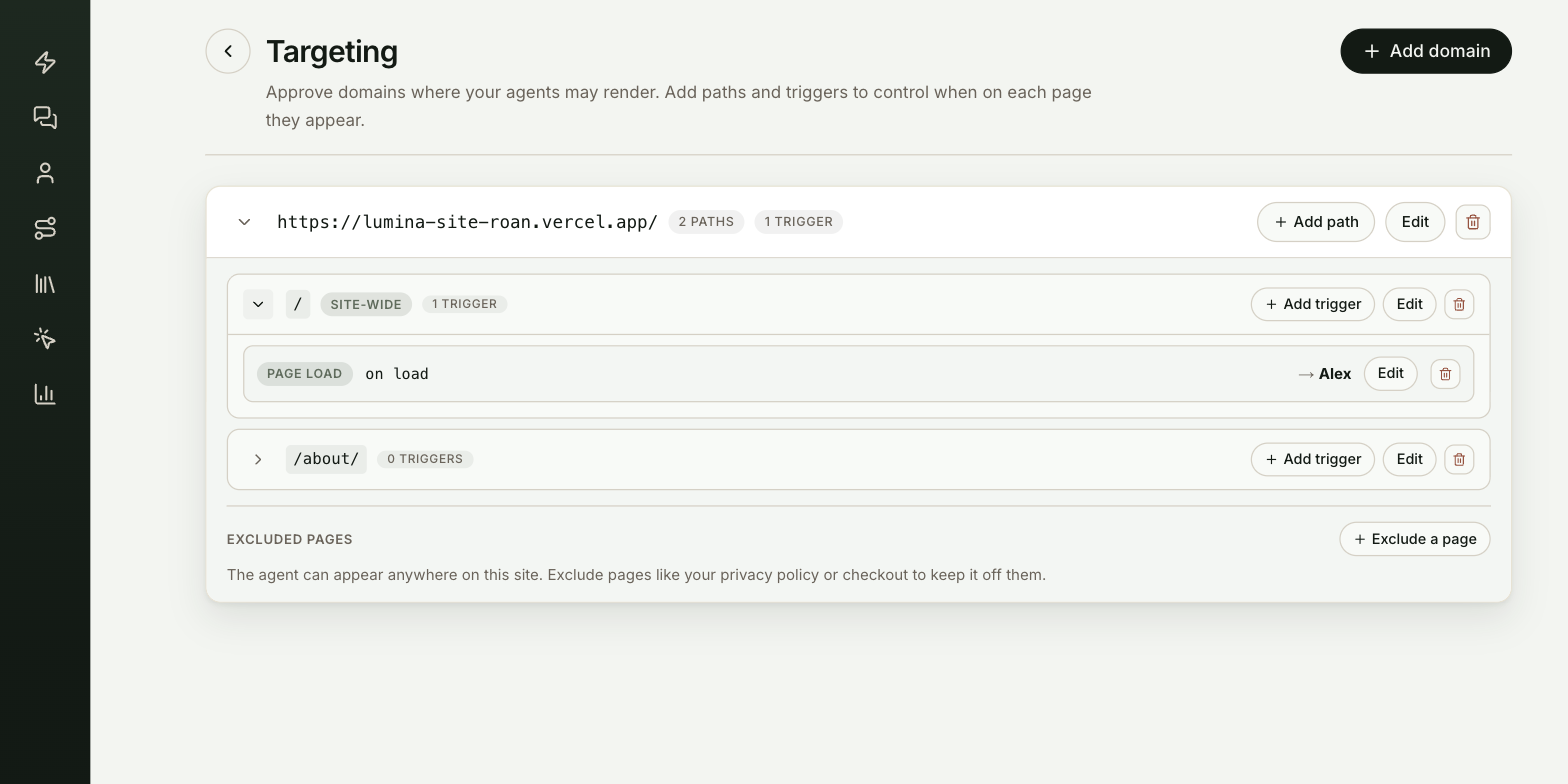
It works in three levels, set up in Settings → Targeting:
- Domains. The sites your agents may appear on at all. Your agent never appears on a domain that isn't here.
- Paths. The pages on a domain where an agent appears.
- Triggers. For each path, which agent appears, how it's displayed and what makes it appear.
You can also exclude pages on a domain, so the agent stays off them whatever else matches.
The same web tag works on every page. You change where agents appear here, without touching your site's code. For a first install, start with Put your agent on your site.
How do you add a domain?
Open Targeting
Go to Settings → Targeting and select Add domain.
Enter the domain
Type your site into Domain and select Add domain. Any of these work:
| You enter | It covers |
|---|---|
acme.com | Your site at that address |
https://acme.com | The same site, written as a full address |
*.acme.com | Every subdomain, like www.acme.com and docs.acme.com |
localhost | Local testing on your own computer. Leave off the port number. |
Until you add a path, your oldest published agent appears on every page of that domain. The domain row says so when you expand it.
How do you choose which pages an agent appears on?
Paths decide which pages an agent appears on. Expand a domain and select Add path.
/means the whole site. The path shows a Site-wide tag.- Other paths match exactly.
/pricingmatches only your pricing page. - Dynamic paths also match everything beneath them. Tick Dynamic and
/blogcovers every blog post too. The path shows a Dynamic tag.
How do you choose which agent appears, and when?
A trigger says which agent appears on a path and when. Expand a path and select Add trigger.
Select your agent
Under Select your Agent, search for and pick the agent. Only published agents appear to visitors.
Choose how it's displayed
Under How should the Agent be displayed?, pick a view:
| View | What visitors see |
|---|---|
| Site Agent | A centered ask-anything bar |
| Chat Button | A launcher in the corner with the agent's face. Use Anchor to put it in the Right corner or Centered. |
| Engage | A card in the corner that reaches out with a greeter video |
| Rail | The conversation opens on arrival along the right edge |
| Beam | The agent stands on the page itself. You can only pick it for agents set up with a Beam avatar. |
Choose what makes it appear
Under What will trigger your Agent to display?, pick one:
| Trigger | The agent appears |
|---|---|
| Page load | As soon as the page loads |
| Time on page | After the visitor has been on the page for the time you set, up to 30 seconds |
| Scroll depth | Once the visitor scrolls past the depth you set, from 5% to 100% |
| Exit intent | When the visitor looks about to leave the page |
| UTM | When the page address carries the UTM parameter and value you set, like utm_source = linkedin |
| Element on page | When the visitor clicks the element you name with a CSS selector, like #cta or .pricing-card |
Each path can have one Page load trigger and one Exit intent trigger.
Save it
Save the trigger. It shows under the path with its type and timing, along with the agent it opens.
How do you keep the agent off a page?
Keep the agent off pages where it doesn't belong, like your privacy policy or checkout. Exclusions win over every path and trigger on the domain.
Expand a domain and select Exclude a page under Excluded pages. Enter the path:
/privacyexcludes that page only./excludes only your home page, never the whole site.- Tick Include sub-pages to exclude everything under the path too, so
/legalcovers every legal page.
To stop excluding a page, select the bin icon on it.
How do you change or remove targeting?
- Edit on a domain, path or trigger changes it.
- The bin icon on a domain, path or trigger deletes it after you confirm. Deleting a domain removes its paths and triggers, and your agents stop appearing on that site. Deleting a path removes its triggers.
Test it
Targeting is working when the right agent appears on a matching page and stays off an excluded one:
- Open a page on the domain in a private browser window.
- Do what the trigger waits for: wait, scroll, click the element or open the page with your UTM parameters.
- The agent you picked appears in the view you chose.
- Open an excluded page. The agent doesn't appear.
Troubleshooting
| Issue | What to check |
|---|---|
| The domain doesn't match | The address in your browser has to match a domain in Targeting. Add a *. domain if you use subdomains. |
| The agent isn't published | Drafts never show to visitors. |
| The path matches exactly | /pricing doesn't cover /pricing/teams. Turn on Dynamic to include pages beneath it. |
| The page is excluded | Check Excluded pages on the domain. |
| The web tag isn't on the page | See Web tag. |
| Beam isn't offered as a view | You can only pick it for agents set up with a Beam avatar. |
Frequently asked questions
Which agent appears on a domain with no paths?
Your oldest published agent appears on every page of that domain until you add a path. The domain row says so when you expand it.
Do I need to change my site's code to move an agent?
No. The same web tag works on every page, and you change where agents appear here.
Does excluding / hide the agent on my whole site?
No. / excludes only your home page. To keep the agent off a site entirely, delete the domain.
Are there limits on triggers per path?
Each path can have one Page load trigger and one Exit intent trigger.
Which wins, an exclusion or a trigger?
The exclusion. Exclusions win over every path and trigger on the domain.