

Brand
Set your logo and colors once, along with your fonts, so your offers and tour slides look like your brand, and your hub pages too.
Everything your agent puts in front of a buyer should look like it came from your company. Your brand kit holds your logo and colors along with your fonts. It also keeps a sample of your writing voice. Offers and tour slides start from it, and so do hub pages, so you set your brand once.
You have one default kit for all your sites. If you run more than one brand, you can give a site its own kit.
This article covers setting up the kit, giving one site its own kit, and checking it's applied.
What's in the brand kit?
| Section | What it sets |
|---|---|
| Identity | Your Logo, and a Voice sample that guides text the AI writes for you |
| Palette | Your brand's colors, and which one plays each role |
| Typography | Your Headline font and Body font, with Weight and Line height, and the Button radius |
How do you set up your brand kit?
Open Brand
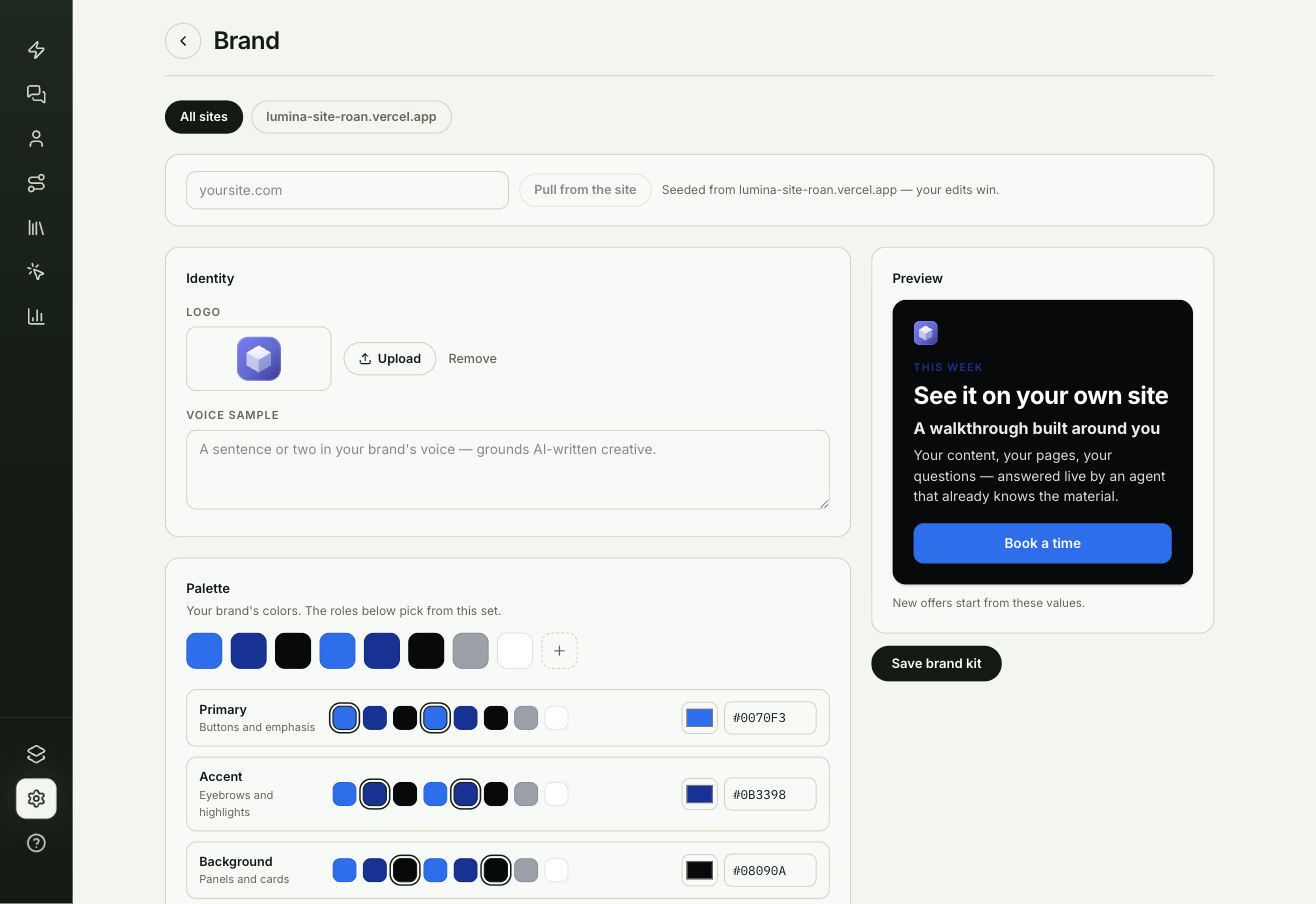
Go to Settings → Brand. If you have domains in Targeting, a row of site chips appears at the top. All sites is your default kit.
Pull from your site
Enter your website address and select Pull from the site. ShowPilot reads your logo and colors, along with your fonts and a sample of your copy, and fills in the kit. The kit then says which site it was seeded from. Anything you change afterwards wins.
If ShowPilot can't read your site, or you don't see Pull from the site, set the kit by hand in the next step.
Check each section
- Identity. Upload your Logo and add a Voice sample: a sentence or two in your brand's voice. The voice sample guides text the AI writes for you.
- Palette. Your brand's colors. The roles pick from this set: Primary for buttons and emphasis, Accent for eyebrows and highlights, Background for panels and cards, Text for copy on that background.
- Typography. Pick a Headline font and Body font, with Weight and Line height, and set the Button radius.
The preview updates as you go.
Save
Select Save brand kit.
How do you give one site its own kit?
Select the site's chip at the top of Brand. The site follows your default kit until you save changes for it. Edit the kit, then select Save for followed by the site name. The override applies to offers on that site.
To go back to the default kit for that site, select Remove override.
Test it
Your brand is ready when the kit is saved and your content picks it up:
- Reload Settings → Brand. Your logo and colors are still there, along with your fonts. The Brand row on the Settings screen says Ready.
- Open an offer or a hub page and check that it uses your colors and fonts.
Troubleshooting
| Issue | What to check |
|---|---|
| Pull from the site doesn't fill in the kit, or isn't shown | Set the kit by hand in each section, then save. |
| An offer on your website shows a different font | Offers on your website use fonts your page has already loaded. Load the font on your page, or pick one it already uses. |
| One site doesn't match your default kit | That site may have its own kit. Select its chip, then Remove override to go back to the default. |
Frequently asked questions
Why does the font in the preview differ from my website?
The preview in Settings loads Google Fonts, so it shows them exactly. Offers on your website use fonts your page has already loaded.
What does the voice sample do?
It guides text the AI writes for you. A sentence or two in your brand's voice is enough.
If I change something after pulling from my site, which wins?
Your change. Anything you edit after the pull wins.