

Create an offer
Show a popup, toast or banner to the right visitors, and let your agent make the same offer in conversation.
An offer puts a campaign in front of the right buyers at the right moment and turns their interest into a lead or a meeting. It's a short message with a button, such as a webinar invite or a pricing guide. It appears on your site for the visitors you target, and your agent can also bring it up in conversation. When a visitor accepts, the button does what you chose: book a meeting, collect their details, open a page or open content.
Offers show on top of whatever agent already runs on the page, so you don't need a separate agent for a campaign.
This article covers how to create and target an offer, then how to test it and read its results.
Where do you find offers?
Go to Inbound → Offers. You're in the right place when you want to run a campaign message on your site that the agent can also make in conversation.
What do you need before you start?
- ShowPilot on your site. See Put your agent on your site.
- Booking set up, if the button books a meeting. See Set up meeting booking.
How do you create an offer?
Start a new offer
Go to Inbound → Offers and select New offer. The editor opens on the Design tab. Click Untitled offer at the top and type a name your team will recognize.
Design it
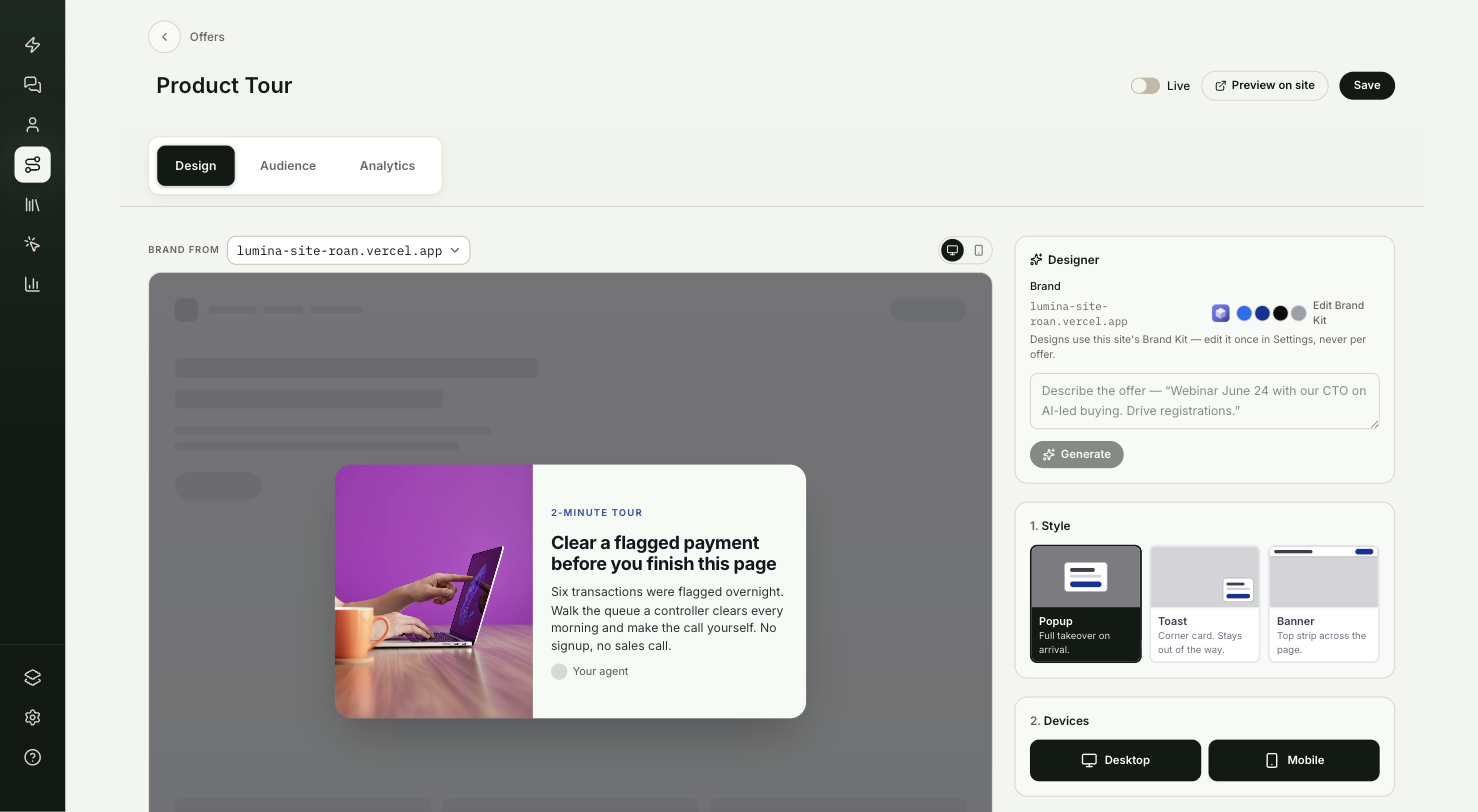
On the Design tab, your offer appears over a picture of your site, and every change shows as you make it.
For a quick start, describe the offer in the Designer box and select Generate. Pick the version you like to apply it. Then adjust it in the numbered sections:
- Style: Popup takes over the page on arrival, Toast is a corner card, Banner is a strip across the top.
- Devices: Desktop, Mobile or both.
- CTA: what the button does. Book a meeting, Capture contact, Go to a page, Open content, Launch experience or No button.
- Contents: Headline, Body text, Button text and Decline text. Use After they accept to tell the agent what to do next once the visitor accepts.
- Design: layout, image and sizing.
Choose who sees it
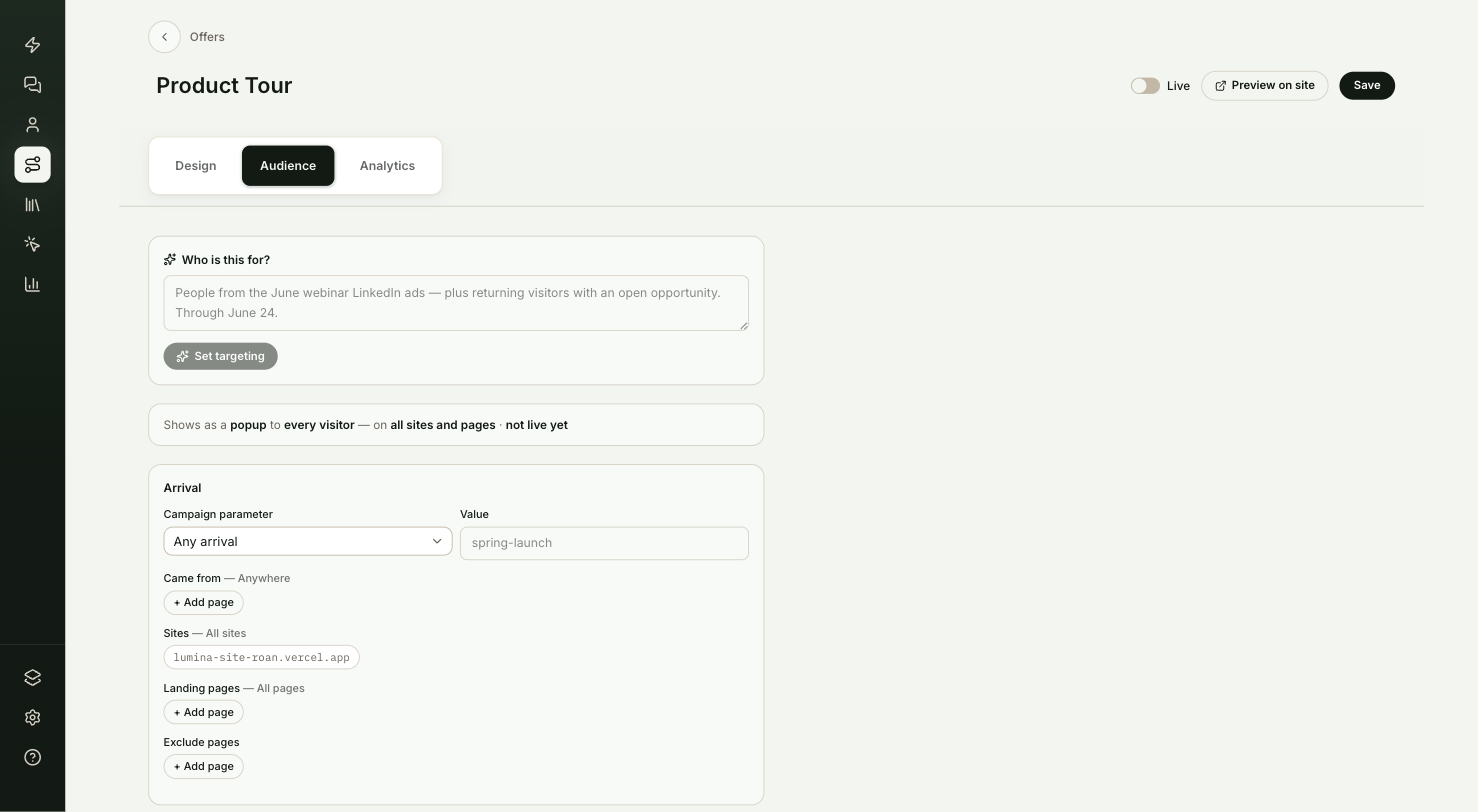
Open the Audience tab. The fastest way is Who is this for?: describe the visitors in a sentence, for example people arriving from your LinkedIn ads who already have an open deal, and select Set targeting. ShowPilot fills in the settings below, and you can adjust them:
- Arrival: a campaign parameter and value, the site they Came from, which Sites, and Landing pages or Exclude pages.
- Relationship: whether they're a known CRM contact or have an open opportunity, their lifecycle stage and industry, and whether it's their first visit.
- Moment: show it Immediately or After a delay, and optional Starts and Ends dates.
Decide how the agent uses it
Still on Audience, under Agent use:
- Pick the audiences the agent can make this offer to in conversation. With none picked, it can offer it to any visitor.
- Turn on Personalize the pitch to let the agent reword the headline and body for each visitor. Design, button and action stay as you set them.
- Set the Outcome you want and what to Collect. Pick one of your forms, or pick fields and the agent asks for them in conversation, skipping anything it already knows.
- If a CRM is connected, use On conversion to add the contact to a HubSpot list or submit a HubSpot form.
Preview, then go live
Select Save. Select Preview on site to get a link that opens the offer on your real site. Only people with the link see it.
When it looks right, turn on Live and select Save again.
You can also turn an offer on or off from the list on Inbound → Offers with the switch on its row. That change takes effect right away.
Test it
Check the offer end to end before you rely on it:
- Open the Preview on site link. The offer appears on your site as designed.
- Select the button and check that it does what you chose.
- After the offer has been live for a while, open its Analytics tab to see how often it was Shown, Accepted, Declined and Dismissed over the last 30 days, and its Accept rate.
How do you see results across offers?
Above the list on Inbound → Offers, the summary shows Impressions, Accepts and Dismisses. Conversions counts the leads captured and meetings booked by visitors who accepted an offer. Select either number to see those people on Leads or Meetings.
Troubleshooting
| Issue | What to check |
|---|---|
| Save stays greyed out or shows an error | Every offer needs Body text. A button that goes to a page, content or an experience also needs its destination picked, or switch the button to No button. |
| The offer doesn't show for a real visitor | Check that Live is on and that the visitor matches every setting on the Audience tab, including dates and pages. |
Frequently asked questions
Do I need a separate agent for a campaign?
No. Offers show on top of whatever agent already runs on the page.
Who can see an offer before it's live?
Only people with the Preview on site link.
Can the agent change the offer's wording?
Only if you turn on Personalize the pitch. The agent then rewords the headline and body for each visitor. Design, button and action stay as you set them.
Which visitors can the agent make the offer to in conversation?
The audiences you pick under Agent use. With none picked, it can offer it to any visitor.