

Set up a form
Decide what your agent collects before it books a meeting, hands a visitor to your team or opens gated content, and what happens after.
Forms decide what your agent must know before a buyer gets a meeting, a person or gated content, so every lead reaches your team qualified and every submission is routed and recorded. A form sets what the agent needs from a visitor at one moment, such as before it shows meeting times. You choose the fields and what happens after. You don't write the questions: the agent asks for each field in its own words, in context, and skips anything it already knows. The visitor sees a short card in the chat for the details the agent still needs.
This article covers how to set up a form or import one from HubSpot, then how to test it.
Where do you find forms?
Go to Inbound → Forms. New agents come with a pre-built set of forms, so booking and the handoff to your team work before you change anything.
You're in the right place when you want to change what the agent collects at a moment in the conversation, or what happens after a visitor fills it in.
What do you need before you start?
- Slack connected, if you want the team told about each submission. See Slack.
- HubSpot or Salesforce connected, if you want a task created on the contact. See HubSpot or Salesforce.
How do you set up a form?
Open or create the form
Go to Inbound → Forms. Each form is tied to a moment in the conversation:
| Form | When the agent uses it |
|---|---|
| Schedule a meeting | Before meeting times appear. |
| Reach the team | Before handing the visitor to a person. |
| Create a lead | When the visitor wants a follow-up without a meeting. |
| Register for an event | When the visitor signs up for an event in conversation. |
| Send it somewhere | When captured details should go to your own endpoint, such as Zapier or Make. |
There's also a gate form for gated content, which sets what a visitor gives before the content shows.
Select a form to edit it. To add one you don't have yet, select New form and pick the moment. Each moment has one form, so moments you've already covered show Already exists.
Choose the fields
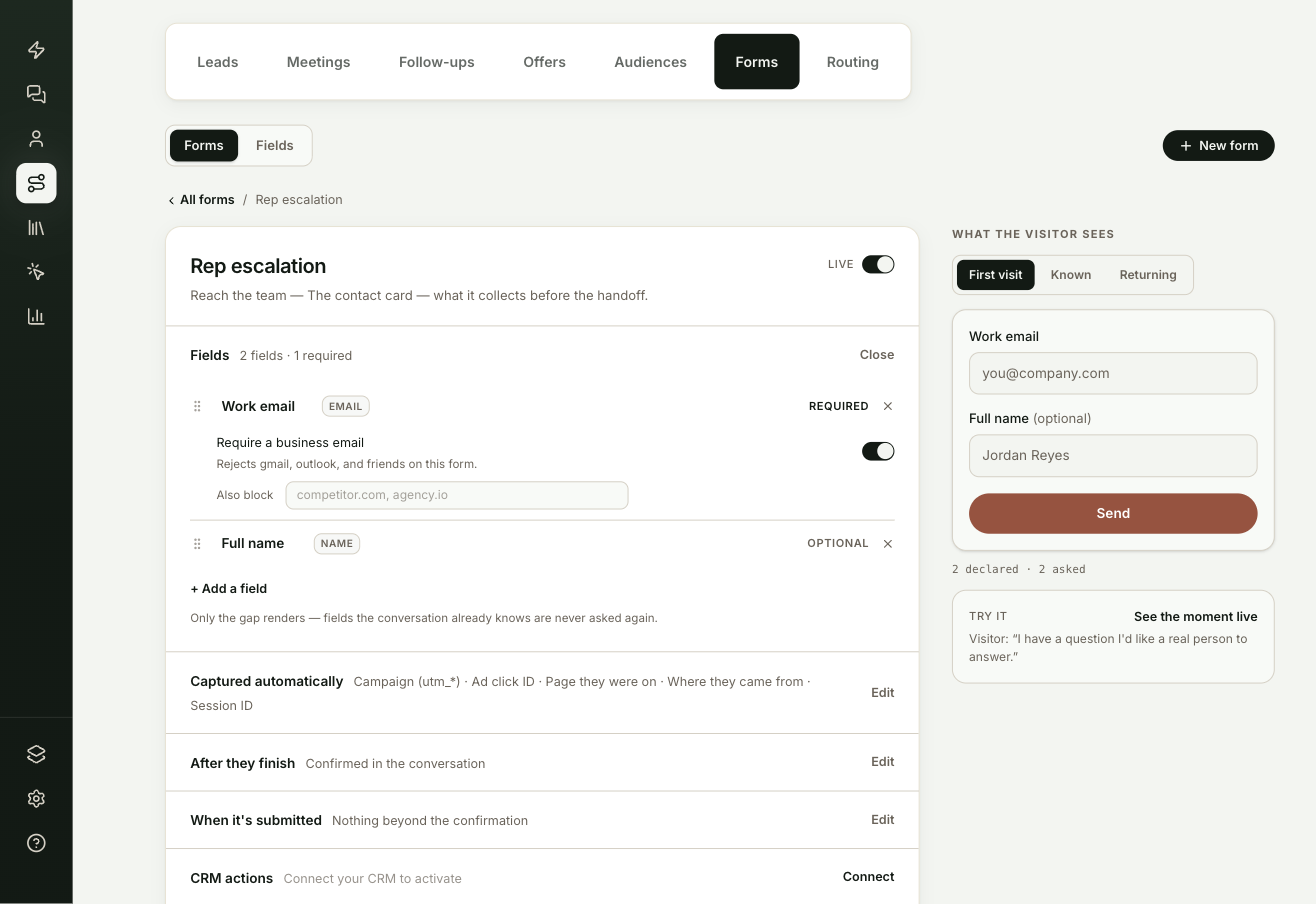
In Fields, select + Add a field to pick from your fields, or create a new one there. For each field you can:
- Switch it between required and optional.
- Drag it to change the order.
- Give it a different label on this form.
- For an email field, turn on Require a business email and list extra domains to block under Also block.
On the Schedule a meeting form, Ask for email before showing times is on by default. You capture the lead even if they never pick a time. Turn it off to show the calendar first, which means you only get an email if they book.
The preview on the right shows the card the visitor sees.
Choose what happens after
Open each section with Edit:
- Captured automatically: extra details saved with each submission without asking, such as the campaign, the page they were on and their device and country.
- After they finish: Confirm in the conversation or Send them to a page. Leave the confirmation message empty and the agent phrases it.
- When it's submitted: Tell the team posts to Slack with the transcript and what was captured. Send a follow-up email emails the visitor from the assigned rep's own mailbox after the delay you set. If that rep hasn't connected a mailbox, the email is skipped. It is never sent from a ShowPilot address. Add a Conversion event name to count each person who completes the form once.
- CRM actions: Create a task adds a dated task on the contact.
- Where it sends (for Send it somewhere): paste your endpoint. Every submission is posted there, signed so your system can check it came from ShowPilot.
Guide how it's collected (optional)
In How it's collected, add guidance in plain words, for example "ask for the email first and say the invite is going there". This is guidance, not a script. The agent still words each ask itself.
Turn it on
Switch Live on at the top of the form. Changes save as you make them.
How do you import a form from HubSpot?
If the form already exists in HubSpot, select New form, then Import the form. Paste the form's share link or the two IDs from its embed code, choose whether it's used for Create a lead or Register for an event, and select Import. No HubSpot connection is needed.
The fields come in, and every submission is also sent to your HubSpot form, so its confirmation emails, lists and workflows keep running there. If you already had a form for that moment, the import replaces its fields and switches it off so you can review it before it goes live.
Test it
Run through this check before you rely on the form:
- Under the preview, select See the moment live. The agent answers a sample visitor as it would on your site, so you can see how it asks for the fields.
- On your site, go through the same moment as a test visitor and fill in the card.
- Check Inbound → Leads for the new lead. On Inbound → Forms, the form's row shows how many times it opened and the share completed.
Troubleshooting
| Issue | What to check |
|---|---|
| Tell the team is greyed out | It needs Slack. Select Connect Slack next to it. |
| CRM actions says to connect your CRM | Connect one under Settings → Integrations. |
| No follow-up email arrived | The assigned rep needs a connected mailbox. See Connect your email and calendar. |
| New form shows Already exists for a moment | Each moment has one form. Select the existing form to edit it. |
Frequently asked questions
Do I write the questions the visitor sees?
No. The agent asks for each field in its own words, in context. You can add guidance under How it's collected, but the agent still words each ask itself.
Who sends the follow-up email?
The assigned rep, from their own connected mailbox. If that rep hasn't connected a mailbox, the email is skipped. It is never sent from a ShowPilot address.
Do I need a HubSpot connection to import a HubSpot form?
No. Paste the form's share link or the two IDs from its embed code. Every submission is also sent to your HubSpot form.
Will the agent ask for details it already has?
No. It skips anything it already knows, and the card only shows the details it still needs.