

Your team and calendars
See who can take meetings and leads, connect calendars, set each rep's hours, and check who got what on the Routing tab.
Routing gets every qualified buyer to the right rep fast, so no lead or meeting sits unowned. Inbound → Routing decides which person on your team gets each visitor.
This article covers the Team and Activity tabs. For the Rules tab, see Routing rules.
| Tab | Use it for |
|---|---|
| Team | Who can take work. |
| Rules | Who gets each visitor. |
| Activity | Who got what and why. |
You're in the right place when you want to check who can take meetings or see why a lead went to a rep.
What is on the Team tab?
The Team tab lists everyone in your ShowPilot workspace. To add someone, select Invite teammate, which takes you to Settings → Users.
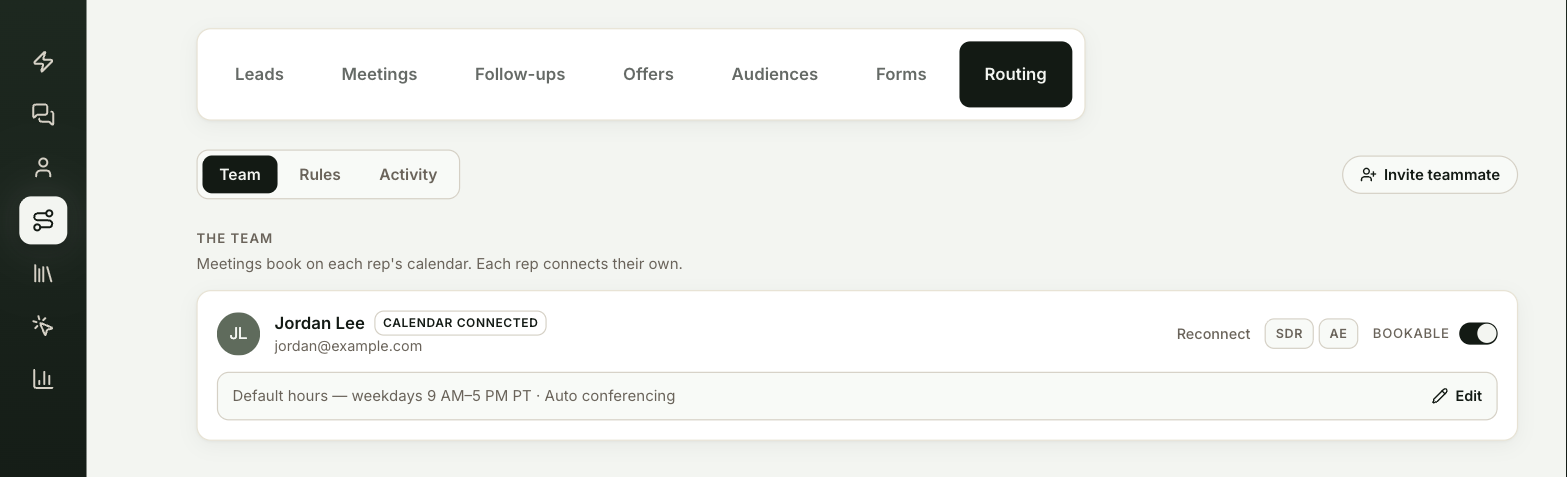
Each rep's row shows:
- Calendar status: Calendar connected, In-chat times (a HubSpot booking link), Link only (another booking link) or No booking link.
- Connect calendar or Reconnect, next to your own name only. Each rep connects their own calendar. See Connect your email and calendar.
- SDR or AE, set by an admin. Reps marked SDR form the SDR pool, which a rule can send leads to when the visitor never answers a question the rule needs.
- Bookable: turn it off to stop a rep from getting meetings.
- A line summing up their booking settings. Select Edit to change their booking hours and notice. You can also set a buffer between meetings and choose a meeting room. See Set up meeting booking.
Reps can edit their own settings. Admins can edit anyone's.
What about CRM owners who aren't in ShowPilot?
If your CRM assigns contacts to people who don't have a ShowPilot account, a notice lists their email addresses. Rules that route to the CRM owner can't reach them, so those leads fall to the next rule. Invite them from Settings → Users with the same email your CRM uses.
What does the Activity tab show?
The Activity tab covers the last 30 days:
- A table of each rep's Assigned and Booked counts.
- A list of every routing decision: the time, the signal, who it was Routed to and Why. To replay a lead through your current rules, use Send through the line on its row. See Routing rules.
Who gets alerted?
Admins see Notifications at the bottom of Activity. When Slack is connected, reach-out requests, hot leads, escalations and booked meetings go to Slack. Without Slack, they go to the routed rep's email, and to the addresses under Email alerts when no rep is routed. Leave Email alerts empty to notify every admin.
Test it
Your team is ready for routing when:
- On Team, check that every rep who should take meetings shows Calendar connected and has Bookable on.
- After your agent has booked a meeting or captured a lead, open Activity and find the decision. Why explains the assignment.
Troubleshooting
| Issue | What to check |
|---|---|
| A rep doesn't get meetings | Check that Bookable is on and their calendar status. |
| You can't see Connect calendar on a teammate's row | It appears next to your own name only. Each rep connects their own calendar. |
| Leads routed to a CRM owner fall to the next rule | The CRM owner has no ShowPilot account. Invite them from Settings → Users with the same email your CRM uses. |
| Nobody is alerted about new leads | Connect Slack, or check the addresses under Email alerts in Notifications. |
Frequently asked questions
Who can edit a rep's booking settings?
Reps can edit their own settings. Admins can edit anyone's.
What is the SDR pool?
The reps marked SDR. A rule can send leads to the pool when the visitor never answers a question the rule needs.
Where do alerts go if Slack isn't connected?
To the routed rep's email, and to the addresses under Email alerts when no rep is routed. Leave Email alerts empty to notify every admin.