

Hubs
Put several tours behind one link, choose what opens first, and see at a glance what stands between a hub and its viewers.
A buyer evaluating your product usually needs to see more than one thing. A hub puts several tours behind one link, so a rep can send an account one URL and know it covers everything that account should see. The hub also holds the captures its tours are built from, the context your agent presents with, and an optional checklist that guides viewers through the tours in order.
You're in the right place when you want to group tours for one account, one product area or one onboarding set, or when you need to know why a hub link isn't live yet.
What is a hub?
A hub is one shareable link with many tours behind it. Every tour belongs to a hub. When you create a tour from new captures, ShowPilot creates a hub for it, named after the capture session.
A hub has no publish step of its own. Its link is live when both of these are true:
- At least one tour in it is published and serving.
- Serving is on in the hub's Settings tab.
Publishing the first tour lights the hub link. If you stop serving the last live tour, the hub link goes dark again. Each tour also keeps its own link, so you can share a single tour or the whole hub.
| A hub holds | What it's for |
|---|---|
| Tours | The tours viewers can watch from the hub link. |
| Context | What the hub is for and who it's for. The writing pass and your agent read it. |
| Captures | The collections of screens the hub's tours are built from. |
| Checklist | An optional panel that lists what to watch and tracks progress. See Checklists. |
| Settings | Whether the hub link serves, how it opens, and which agents can present it. See Hub settings. |
How do you find your hubs?
Go to Tours → Hubs. A hub with a single tour stays out of the way: this list only shows a hub once it holds more than one tour, a checklist or context. Single-tour hubs still exist, and their tour shows on the Tours tab as usual.
| Control | What it does |
|---|---|
| Find a hub | Searches hub names and descriptions. |
| Sort menu | Recently updated, Most viewed, Most tours or Name A–Z. |
| View toggle | Switches between the card view and the list view. |
| Create hub | Opens the Create hub window. It offers the starts that build a hub around a tour: Taking new captures, From a collection and Recording a video. See Create a tour. |
Each card shows the hub's first screen, a Live pill or a draft pill that says why (Draft · nothing in it or Draft · no live tour), the domain its captures came from, who created it, and a stats line: tour count, live count, views, last update. Select the Live pill to open the hub link.
Empty hubs sort to the end of the card view as a dashed Add a tour card. In the list view they fold away under Empty hubs; select show to see them.
What's on the hub menu?
Open a hub's ⋯ menu for these actions:
| Action | What it does |
|---|---|
| Open hub link | Opens the live hub page in a new tab. Only shown when the hub is live. |
| Copy share link | Copies the hub link. |
| Rename hub | Changes the hub's name. |
| Delete hub | Deletes the hub after you confirm. Its tours stay in Tours and its captures return to the Captures library. The hub link stops working, and the checklist is deleted with it. |
What's at the top of a hub?
Open a hub to see its header:
- Name and pencil. Select the pencil to open Edit hub, where you change the Name and add an optional Description of what the hub shows and for whom. The description appears under the name, and on the hub link's preview when it's pasted into a message.
- Status line. A green dot and Live followed by the hub link, how many of its tours are live, and how many checklist tasks it has. When the hub isn't live, it says Not live yet with "This link goes live when its first tour is published", or Serving off when you've turned the link off in Settings.
- Share. Opens the share window for the hub link. See Share links.
- Open. Opens the live hub page. Only shown when the hub is live.
What does the readiness strip tell you?
Under the header, a short strip lists what's worth fixing. It's labelled To go live while the hub link is dark, and Worth a look once it's live. Select any item to jump to the tab that fixes it.
| Item | What it means |
|---|---|
| Publish a tour | No tour in the hub is published, so the link can't go live. This is the only item that blocks going live. |
| N draft tours | Some tours in the hub are still drafts. Viewers only see published tours. |
| No checklist — the URL opens one tour | There's no checklist, and only one tour is live, so the hub link plays that tour. |
| No checklist — the URL opens a tour chooser | There's no checklist and two or more tours are live, so the hub link offers a tour chooser. |
| N tasks point at a deleted tour | A checklist task starts a tour that no longer exists. Viewers don't see that task. |
| N tasks open a draft tour | A checklist task starts a tour that isn't published. Viewers don't see that task until you publish the tour. |
| No hub context yet | The Context tab is empty. Tours still work, but the writing and the agent have less to go on. |
| Agent-led is on but no published agent can present this hub — publish an agent | Delivery is set to agent-led, but your workspace has no published agent to present it, so the link plays self-guided. Publish an agent, or pin a published one. Agents with access doesn't affect this. |
How does the Tours tab work?
The Tours tab lists every tour in the hub, one per row. Select a row to open that tour in the builder. New tour sits to the right of the tab row and adds a tour to this hub.
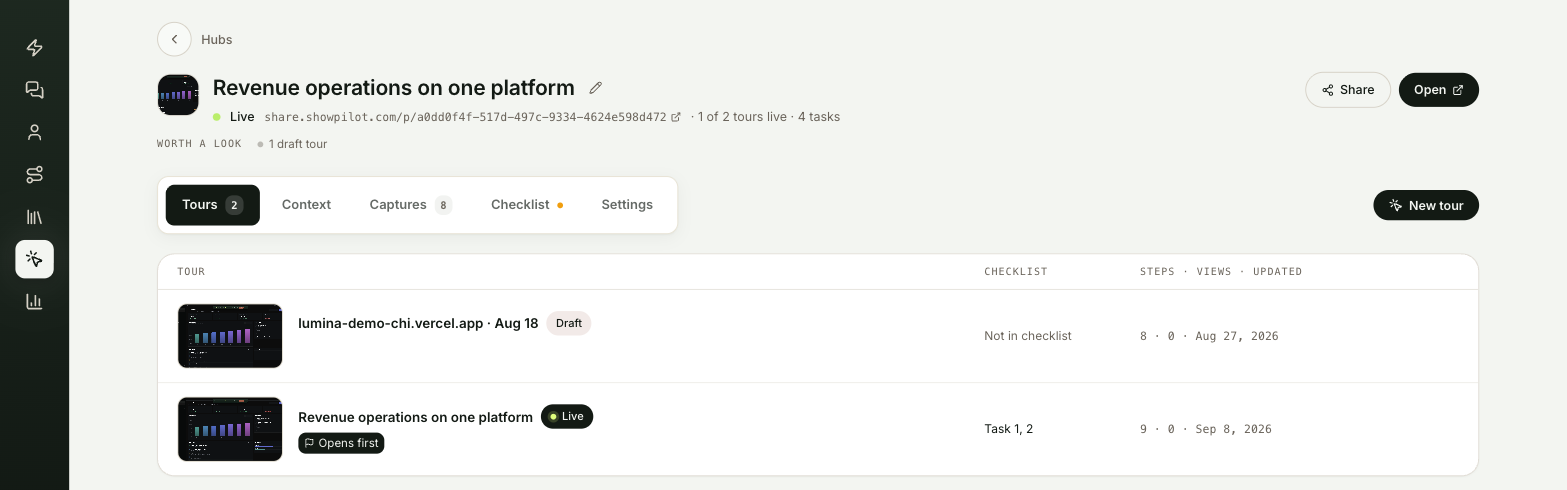
| Column | What it shows |
|---|---|
| Tour | The tour's first screen, its name, its Live or Draft status, and the Open first marker. |
| Checklist | Which checklist task starts this tour, such as Task 2. It says Not in checklist if the hub has a checklist that doesn't include the tour, and No checklist yet if the hub has none. A draft tour in the checklist adds Draft — hidden from viewers. |
| Screens · Views · Updated | The tour's screen count, its view count and the date it was last changed. |
Hover a row for its actions: play it, edit it, or open the ⋯ menu with Share tour link, Insights, Clone tour, Move to another hub and Delete tour.
How do you choose which tour opens first?
The hub link opens one tour on arrival. The row that opens first carries a dark marker:
- Opens first means you pinned it.
- Opens first · via checklist means nothing is pinned, so the hub link opens the tour from the first checklist task.
To pin a tour, hover its row and select Open first. Select the marker again to unpin it and let the checklist decide. With nothing pinned and no checklist, the hub link opens the first tour in the list.
What goes on the Context tab?
The Context tab is where you tell ShowPilot the parts only you know about this hub. The writing pass and the tour planner read it for every tour in the hub, and your agent reads it when it presents. Changes save as you type.
The fields are grouped the way you'd brief a colleague:
| Group | Fields |
|---|---|
| Knows | What this hub shows, in your words, and Proof worth landing: the claims the tours should back up on screen. |
| For | Audiences in play, the audiences the hub's tours are for, picked as chips, and The account, a private note about who the viewers are and what they need to see. It steers the agent and never appears to viewers. |
| Aims | What this hub is trying to achieve: the outcome and the ask. |
| Never | Never surface, claim, or discuss: hard boundaries. This group outranks everything else the agent knows. |
The first time you open the tab on a hub with no context, ShowPilot reads the hub's captures and drafts the Knows fields for you. It shows how many captures it drafted from; your edits always win, and Re-draft runs it again. For, Aims and Never are yours to fill.
Leave the audience chips empty to write for all your audiences. Edit the audiences takes you to your workspace audiences. See Audiences.
What is the layer stack?
Beside the fields, What the agent already knows shows everything the agent and the writing pass read, top to bottom, with the real values:
- Workspace: your product, go-to-market and voice context from Settings.
- The audiences picked for this hub.
- This hub: the fields on this tab.
- The tours' arcs: each tour's beats.
- The screens: how many of the hub's captures have a description the agent can see.
- The craft skill: how your workspace builds tours.
Use it to avoid repeating what a higher layer already says. See Tour context.
How does the Captures tab work?
The Captures tab shows every capture in the hub as a grid.
| Control | What it does |
|---|---|
| Collection chips | All, then one chip per collection. Select a chip to show only that collection. |
| Date filter | Any time, Today, Last 7 days or Last 30 days. |
| Open collection | Shown when a collection chip is selected. Opens the collection to reorder, move or resize its captures. See Captures library. |
| Generate tour | Shown when a collection chip is selected. Builds a new tour from that collection. |
| Add collection | Adds captures to the hub, with New captures or From library. |
Select any capture to open its screen context: what's on the screen, in the words your agent reads when it presents it. See Screen context.
How do you add captures to a hub?
Capture new screens
Select Add collection → New captures, check the app URL, and start capturing. The screens land in a new collection in this hub. When you finish in the extension, you come back to the hub and ShowPilot builds a tour from them. See Capture with the extension.
If the extension doesn't start on its own, ShowPilot opens your app in a new tab and shows Capture with the extension, with the steps to start it by hand.
Or bring in a collection from the library
Select Add collection → From library. In Add from library, pick a Collection. Only collections that don't belong to a hub yet are listed, and adding one moves it here with its captures.
Leave Generate a tour from it right away on to build a tour from the collection as soon as it's added, then select Add to hub.
How do you move tours and captures between hubs?
- A tour: open its ⋯ menu on the Tours tab of your workspace or the hub, and select Move to hub (or Move to another hub). Pick a hub, or Its own hub (just this tour) to give it a hub of its own. The tour keeps its share link either way.
- A collection: open it from the Captures library and select Move to hub. The collection and its captures move as one, and tours already built from it keep playing.
What do viewers see on the hub page?
The hub link opens a page with the tour on a stage and, when there's something to choose, a floating panel beside it.
| The hub has | What viewers get |
|---|---|
| One live tour, no checklist | That tour, with no panel. |
| Two or more live tours, no checklist | A tour chooser that opens on arrival, with a card for each live tour. When a tour ends, an Up next card offers the next live tour in hub order, with Play and a dismiss button. The sequence stops after the last tour. |
| A published checklist | The checklist panel or its launcher button. When a tour ends, a Next card offers the next unfinished task. See Checklists. |
Only published, serving tours appear. Checklist tasks that start a draft or deleted tour are hidden. Viewers' progress through a checklist is kept in their own browser, so it survives a reload on the same device unless the checklist resets it on every visit.
The hub page isn't listed by search engines. If you've turned on Google Tag Manager for hosted pages, your container runs on it. See Run Tag Manager on hosted pages.
Test it
Your hub is ready to share when:
- At least one tour in the hub is published, and the header shows Live.
- The readiness strip says Worth a look, not To go live.
- You select Open, and in a private browser window the hub opens on the tour marked Opens first.
- If you built a checklist, it appears, and every task you expect is there.
Troubleshooting
| Issue | What to check |
|---|---|
| The hub link isn't live | Publish at least one tour in the hub, and check Serving is on in the hub's Settings tab. |
| The status line says Serving off | Turn Serving back on in the hub's Settings tab. |
| A tour doesn't show on the hub page | Only published, serving tours appear. Check the tour isn't a draft and its own Serving is on in the builder's Settings. |
| A checklist task is missing for viewers | It starts a draft or deleted tour. The readiness strip lists both. |
| My hub isn't on the Hubs tab | The list only shows hubs that hold more than one tour, a checklist or context. Find its tour on the Tours tab instead. |
| The hub opens the wrong tour | Pin the right one with Open first on the Tours tab. |
| The Context tab drafted nothing | The draft reads capture descriptions. If the captures aren't described yet, fill Knows yourself or select Re-draft later. |
FAQ
Does a tour lose its own link when I move it into a hub?
No. The tour keeps its own share link either way.
Do I publish the hub?
No. Hubs never publish. The hub link goes live when the first tour in it is published, and goes dark if none are live.
If I turn off Serving on a hub, do its tours stop working?
No. Turning off Serving takes the hub page down. The tours' own links stay live.
Can a tour be in two hubs?
No. A tour lives in one hub at a time. To show the same tour in another hub, select Clone tour and move the copy.
What happens to the tours when I delete a hub?
They stay in Tours, and the hub's captures return to the Captures library. The hub link stops working and its checklist is deleted.
Does the account note ever reach viewers?
No. The account on the Context tab steers the agent and the writing. It never appears on screen.
Related articles
Tour settings and defaults
Set the house style every new tour starts from in Tour Defaults, and change one tour's name, look, voiceover, delivery and serving in the builder.
Checklists
Build the panel that guides viewers through a hub's tours in order, tracks their progress, and ends with your call to action.