

Create a tour
Every way to start a tour, from new captures, a collection, a copy, a blank canvas, a video or a description, and how ShowPilot plans and writes it with you.
A good tour tells a story a buyer can follow, and writing that story from scratch takes time. ShowPilot assembles your captured screens in click order, plans the story with you and writes the copy, so you start from a finished draft and spend your time on the parts that matter. You can also build every step by hand.
You're in the right place when you're starting a new tour and want to know which starting point to pick, or what ShowPilot is doing while it builds.
What do you need before you start?
- The ShowPilot Capture extension, if you're capturing new screens or recording video. See Capture with the extension.
- Company context and audiences in Settings → Context, so the writing matches your product and your buyers. It's optional, but the copy is noticeably better with it. See Company context and Audiences.
- Screens in your library, if you're building from a collection. See The Captures library.
Where do you start a new tour?
The same window opens from three places:
| From | Button | Window title |
|---|---|---|
| Tours tab | New tour | New tour |
| Hubs tab | Create hub | Create hub |
| Inside a hub | New tour | "New tour in" followed by the hub's name |
Inside a hub, the new tour joins that hub, and a couple of the options change to match. From the Hubs tab, the window offers only the starts that build a hub around the tour: Taking new captures, From a collection and Recording a video. Everywhere else, ShowPilot creates a hub for the tour when it needs one.
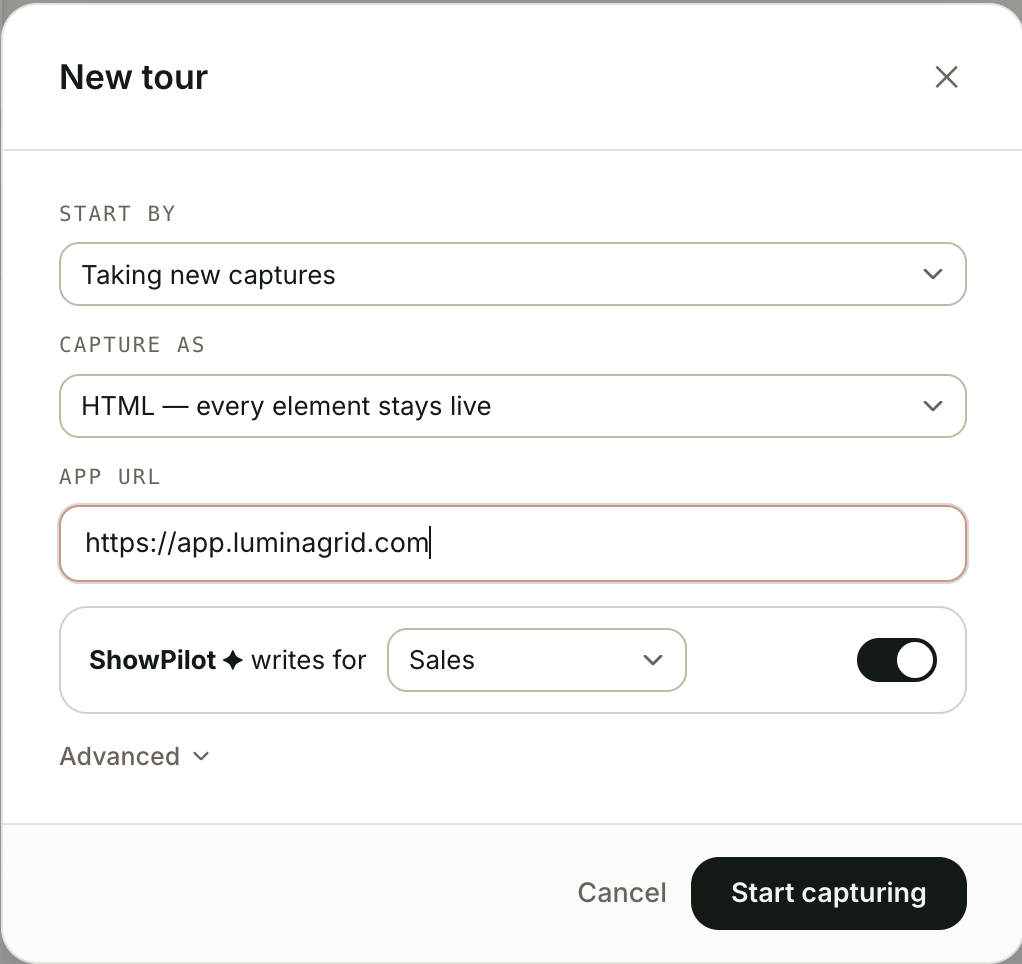
Which starting point should you pick?
Pick one under Start by. The fields below it and the button at the bottom change with your choice.
Capture your app now and let ShowPilot build the tour from the session. This is the fastest path from nothing to a written draft.
| Field | What it does |
|---|---|
| Capture as | HTML — every element stays live keeps each screen as a working copy of your app. Screenshots — pixels only saves images. Choose HTML unless a page doesn't copy well. |
| App URL | The page in your app where the tour starts. You can leave off the https. |
Select Start capturing. ShowPilot creates a hub (or, inside a hub, a new collection in it), opens your app in a new tab and starts the extension there.
Click through your app, then select Finish on the capture bar. ShowPilot brings you back to the hub, assembles the tour and opens it in the builder to plan and write it.
If the extension doesn't pick up the handoff, the window changes to "Ready — capture your walkthrough" and says why. Open the extension in the new tab and start capturing yourself. Finish still brings you back to the hub.
What are the other settings in the window?
| Setting | What it does |
|---|---|
| ShowPilot ✦ writes for | The audience the copy is written for. The list comes from your audiences in Settings → Context. Shown for Taking new captures and From a collection. |
| The switch on the same row | Turns the writing on or off. Off, ShowPilot assembles the screens and anchors a step on each click, but writes nothing. Its label is "Let ShowPilot write tour content". |
| Advanced | Opens two more fields. |
| Hub name or Tour name (under Advanced) | Names the new hub (for new captures outside a hub) or the new tour. If you leave it empty, ShowPilot names it after your app or writes a title. |
| Brief (under Advanced) | "Audience, goal, messaging — anything ShowPilot should know". The planner and the writing pass read it. |
A short brief goes a long way. "Show a finance lead how approvals replace their spreadsheet, and end on the export" gives the planner a goal and an ending.
What happens after you finish capturing?
When you start from the extension instead of the New tour window, Finish opens ShowPilot on a short build page.
Choose the kind of tour
The page says Session captured (or Collection ready) and asks What kind of tour is this? Pick one of your audiences. Each card shows who it's for.
Add a brief
Under "The brief — what should this tour do? (optional)", describe the goal in a sentence or two. You can leave it empty.
Build
Select Build the tour ✦. The page shows each stage as it runs:
- Collecting your shots
- Assembling screens in click order
- Anchoring tooltips on your clicks
- Opening the studio
Collecting waits for the last shot to finish uploading, which can take a minute on heavy pages. When it's done, the tour opens in the builder, where the planning window takes over.
If you already chose the audience and brief in the New tour window, ShowPilot skips the questions and goes straight to building. If assembly fails, the page says "Assembly hit a wall" with the reason. Your captures are safe in the library, so open the collection and select Generate tour to try again.
How does ShowPilot plan the tour with you?
When ShowPilot is writing the tour, the builder opens in Preview with a window titled New Tour over it. It walks through up to four steps.
Choose how to build it
- ✦ AI generated: ShowPilot plans the story, asks what it needs and writes every card. You review the plan before it builds.
- Build by hand: the screens stay as assembled, with a step anchored on each click and nothing written. You write every step yourself.
Set the audience and goal
Confirm the Audience and, optionally, describe What should this tour show? ShowPilot can work from the captures alone if you leave it empty.
Select Continue. ShowPilot reads the screens and plans the story, which takes about fifteen seconds. If planning fails, select try again, or go Back and build by hand.
Answer any questions
If ShowPilot needs more to be confident, it asks a few questions, numbered, each with its own answer box. Often there are none and this step is skipped.
Answer the ones you can. A blank answer lets ShowPilot decide. Select Continue to re-plan with your answers, or Skip the questions to go straight to the plan. Your answers are added to the tour's brief, so you won't be asked again.
Review the plan
The plan shows who it's for and your brief, with Edit to go back and change them. Then:
| Part | What it is |
|---|---|
| Title | The tour's title. Up to 60 characters. |
| The line under the title | The promise the tour makes to the viewer. |
| Closes on | The call to action the tour ends with, such as booking a meeting. Up to 80 characters. |
| Beats | One row per screen, in order, with a thumbnail and the point that screen makes for the viewer. Edit any beat's text. |
| Keep / Cut switch | On each beat. Cut screens the story doesn't need. A counter shows how many screens carry the story. |
Cut screens leave this tour when it builds. The captures stay in the hub and your library.
Select Build to write the tour from this plan, or Build without a plan to write the copy straight from the screens.
What does the writing banner mean?
While ShowPilot writes, a banner at the top of the builder keeps you posted. You can keep editing the whole time.
| Banner | What it means | What to do |
|---|---|---|
| "ShowPilot ✦ is writing your script — keep editing, it lands in place" | The writing pass is running. | Keep working. Titles, talk track and button copy appear in place when it's done. |
| "Script written ✦ — titles, talk track, and button copy are in" | The copy has landed. The preview reloads to show it. | Review the steps. The banner clears after a few seconds. |
| "The writing pass hit a wall — your tour is intact" | Writing failed. The reason is shown in brackets. | Select Retry. |
| "No script yet — the steps are anchored, nothing is written" | The tour has steps but no words, for example after Build by hand or with writing switched off. | Select Write it ✦ to open the planning window and write it now. |
Write it ✦ uses the tour's saved audience and brief as the starting point, and takes you through the same plan and review.
How does the prompt-first flow work?
Describing what you want opens a flow that builds a tour from a video recording in a conversation. It suits a tour you want to shape from call notes, where you'd rather describe changes than make them by hand.
Describe the tour
The page asks What should this tour show? Type a description or paste your call notes into the box, and optionally add the viewer's role. Under the box, a line says which recording the tour will build from. If you have no recording yet, it says there's nothing to build from.
Select Create. If you've made versions here before, Recent tours under the box lets you reopen one.
Only ▶ Video is available as the kind of tour here. The HTML and image options are marked "soon".
Answer a few calls
ShowPilot may ask a few questions before it writes, under "A few calls before I write the script". Every answer is optional. Select Decide for me to let ShowPilot choose, or answer and select Write the script.
Review the script
The script shows the title, a summary, the number of scenes and the running time. Each scene shows its point and why it's there. Scenes ShowPilot left out are listed under Cut with the reason.
To change it, type into "Change the script" (for example "open with booking, cut scene 4") and select Revise. When it reads right, select Generate the tour →.
Refine it in conversation
The studio fills the window: a chat on the left and the tour playing on the right, with a timeline to scrub through it.
- Chat: every reply shows what changed, as a list of what was kept and cut and why. Use the suggestion chips, such as Make it shorter or More technical, or type your own request into the Refine it box.
- Select: select ⊙ Select, then click a part of the playing tour to point the next message at it.
- Scenes: drag scenes to reorder them, select Remove scene (then Restore to bring one back) or add a "Note for the AI" to steer one scene's words. Select Apply — makes a new version to rebuild.
Every change makes a new version. The header shows the current one, such as "Rev 3 · every change makes a new one", so going back to an earlier cut is one message away.
Save it as a tour
Select Preview to watch the current version in a new tab. When you're happy, select Save & edit. ShowPilot saves this version to your Tours and opens it in the builder in a new tab, where you edit and publish it like any other tour.
Test it
Your new tour is ready to edit when:
- The builder opens and the writing banner reads "Script written ✦", or you chose Build by hand.
- You select Preview at the top of the builder and click through the tour. Each screen has steps with titles and text.
- You go back to Tours, and the new tour appears with a Draft label until you publish it.
Troubleshooting
| Issue | What to check |
|---|---|
| Start capturing says to enter a URL | Taking new captures and Recording a video need an App URL. |
| The window says "Ready — capture your walkthrough" | The extension didn't answer. Open it in the new tab and start capturing. The message says why, such as the extension not being installed or enabled for the site. |
| A hub page says assembly didn't finish | Select New tour in the hub again, or open the collection and select Generate tour. Your captures are safe. |
| "Assembly hit a wall" | Your captures are in the library. Open the collection under Tours → Captures and select Generate tour. |
| Planning failed | Select try again in the planning window, or build by hand and select Write it ✦ later. |
| "The writing pass hit a wall" | Your tour is intact. Select Retry on the banner. |
| The tour has steps but no words | The banner reads "No script yet". Select Write it ✦. |
| Describing what you want says there's nothing to build from | That flow builds from a video recording. Record a take first, or pick another starting point. |
| From this hub's captures says the hub has no captures | Start with Taking new captures, or add a collection to the hub from its Captures tab. |
FAQ
Do I have to let ShowPilot write the tour?
No. Switch off the writing switch in the New tour window, or choose Build by hand in the planning window. Either way you get the screens with a step anchored on each click, and you write the words.
What happens to a screen I cut from the plan?
It leaves the tour when it builds. The capture stays in the hub and your library, and you can add it back from the builder with Add screen.
Can I edit while ShowPilot is writing?
Yes. Keep working in the builder. The copy lands in place, and the banner says "Script written ✦" when it's done.
Can viewers see the tour as soon as it's created?
No. A new tour is a draft until you publish it. See Publish and revisions.
How is Copy a tour different from building again from the same collection?
Copy a tour keeps every edit, step and setting from the original. Building again from the collection starts fresh from the raw captures and writes new copy.
Why did creating a tour also create a hub?
Every tour lives in a hub. A hub with a single tour stays out of your way until you add more tours, a checklist or context. See Hubs.
Related articles
Screen context
Tell ShowPilot and your agent what each captured screen shows, so tours are written accurately and your agent presents every screen with the right facts.
The tour builder
Find your way around the builder, from the top bar and canvas to the storyboard and the panel on the right, and learn how each part saves.