

Tours
What a tour is, how one goes from a capture to a live link your agent can present, and where every tours feature is documented.
Capture your app, let ShowPilot write it, then publish and share the link.
Capture with the extensionInstall the Chrome extension and click or record through your product.
Let your agent present a tourHave your agent walk a buyer through the tour and answer questions as it goes.
A tour lets a buyer see your product working before they ever talk to your team. It's a clickable copy of your real app that a prospect walks through on their own, with no sign-up, and your ShowPilot agent can present it in a conversation, answering questions as it goes. Tours have their own capture tool, editor, settings and analytics, so this section covers them in depth.
You're in the right place when you want to show a buyer the product itself instead of describing it.
What is a tour?
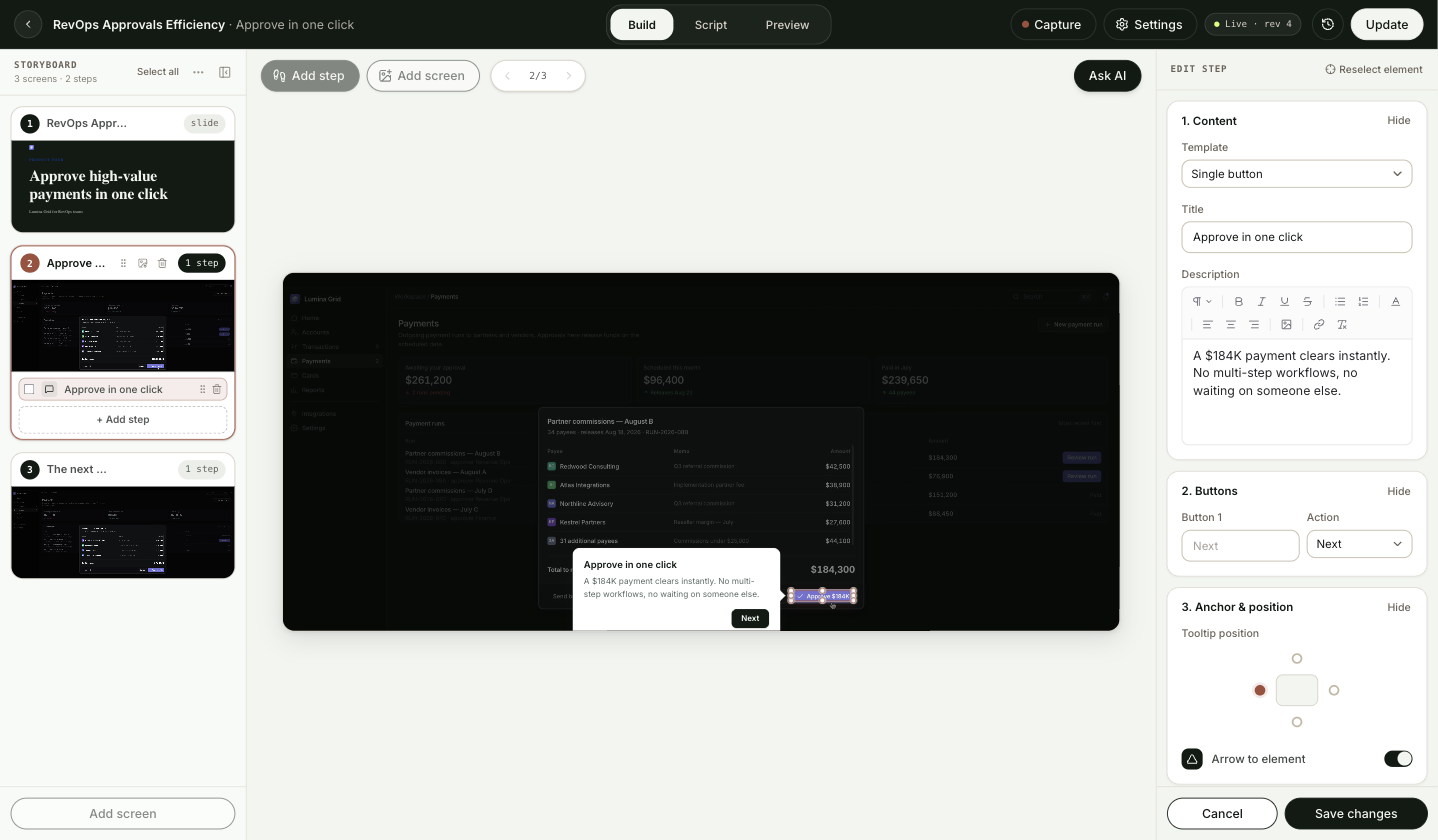
A tour is an ordered set of screens from your product, with steps on them. Screens are captured from your real app, so they look and behave like it. Steps guide the viewer: tooltips that point at part of the screen, cards in the middle of it, and links that jump somewhere when clicked.
A few more pieces fit around tours:
| Piece | What it is |
|---|---|
| Capture | One screen saved from your app by the ShowPilot Capture extension, as live HTML, an image or a video take. Every capture lives in your library. |
| Collection | An ordered set of captures, usually one capture session. You build a tour from a collection. |
| Slide | A screen you write in the builder instead of capturing, such as a title card or a call to action. |
| Hub | A group of tours shared behind one link, with optional context and a checklist that tells viewers what to watch. Every tour lives in a hub. |
| Checklist | A panel on a hub's page listing the tours and links you want a viewer to work through. |
| Revision | A frozen, published version of a tour. Viewers see the latest revision until you publish again. |
Where do you find tours?
Go to Tours in the left sidebar. The page has four tabs:
| Tab | Use it for |
|---|---|
| Tours | Every tour in your workspace. Each card shows its status (Live, Draft, or Serving off for a published tour you've taken down), its views and screens, and an estimated run time worked out from the screen count. Filter, sort, play, edit, share, clone, move or delete one, and start a New tour. |
| Hubs | Every hub that holds more than one tour, a checklist or context. Open a hub to manage its tours, captures, checklist and settings. |
| Captures | Every screen you've captured, as All captures or grouped into Collections. |
| Insights | How your tours perform: plays, completions, calls to action and known viewers, with a page per tour. |
The builder, where you edit a single tour, opens from the Tours tab or from a hub.
How does a tour go from capture to a live link?
Most tours follow the same path. You can enter at any stage, for example by copying a tour you already have.
- Capture. Click through your app with the ShowPilot Capture extension. Every click saves a screen, or you record a video take. See Capture with the extension.
- Build. ShowPilot assembles the screens in click order, anchors a step on each click, plans the story with you and writes the copy. You refine steps, screens and text in the builder. See Create a tour and The builder.
- Design. Match the tooltips and buttons to your brand with a style guide, and set how the tour displays, transitions and narrates. See Style guides and Tour settings.
- Group in a hub. Put related tours behind one link, add context your agent reads, and add a checklist that walks the viewer through them. See Hubs and Checklists.
- Publish and share. Publish freezes a revision for viewers. Share a link, embed the tour on your site, or post it to social. See Publish and revisions and Share links.
- Present. Let your agent present the tour in a chat or on a live call with voice and an avatar. See Let your agent present a tour.
- Measure. See who played each tour, how far they got and where they dropped off. See Tour analytics.
How can a viewer take a tour?
Every tour can be delivered in three ways. You choose per hub, and can override it per tour.
| Delivery | What the viewer gets |
|---|---|
| Self-guided | The viewer clicks through the steps themselves, reading each tooltip. |
| Agent-led · Chat | Your agent presents the tour in text, moving from screen to screen and answering questions as it goes. |
| Agent-led · Live | Your agent presents on a live call with voice and a video avatar. |
A tour that isn't set up for agent-led delivery always plays self-guided. See Let your agent present a tour.
Which kind of screen should you capture?
| Capture type | Choose it when |
|---|---|
| HTML | You want the most control. Every element stays live, so steps attach to real elements, and you can edit text, hide or blur parts of the page, and use the AI tools. This is the default. |
| Image | A page doesn't copy well as HTML, or you only need a picture. You anchor steps by drawing on the screen. |
| Video | Motion or narration matters. Steps pin to moments on the video's timeline. |
Where is everything in this section?
The pages are grouped the same way as the sidebar.
Capture
| Page | Covers |
|---|---|
| Capture with the extension | Installing the extension, click sessions, video takes and what's recorded about each screen. |
| The Captures library | Finding captures, working with collections, and each capture's page. |
| Screen context | What your agent knows about each screen, and how to correct it. |
Build
| Page | Covers |
|---|---|
| Create a tour | Every starting point, the planning window and the writing pass. |
| The builder | The builder's modes, storyboard, canvas and header. |
| Step types | Guides, lightboxes, links and groups, and when to use each. |
| Step settings | Every setting on a step, from buttons and camera moves to voiceover. |
| Edit screen elements | Changing text and images on HTML screens, and hiding or blurring sensitive data. |
| Slides | Five slide templates, from title cards to calls to action. |
| Video screens | The video timeline, step timing and camera moves on video screens. |
| Script view | Reading and editing the tour as a script, and rewriting it for another audience. |
| AI tools | AI Edit, Ask AI, and find and replace. |
Design
| Page | Covers |
|---|---|
| Style guides | The look of tooltips, cards, buttons and highlights across your tours. |
| Tour settings | A tour's name, appearance, voiceover, embed code and delivery, plus workspace Tour Defaults. |
Hubs and checklists
| Page | Covers |
|---|---|
| Hubs | Grouping tours behind one link, and the hub's tabs. |
| Checklists | Building the checklist panel that guides a viewer through a hub. |
| Hub settings | The hub link, delivery mode and which agents can present it. |
Share and publish
| Page | Covers |
|---|---|
| Publish and revisions | Publishing, updating, rolling back and turning serving off. |
| Share links | Tour and hub links, tracking parameters and social sharing. |
| Embed a tour | Putting a tour on your website inline or behind a launch button. |
Present and measure
| Page | Covers |
|---|---|
| Let your agent present a tour | Agent-led delivery in chat or on a live call, and what it needs. |
| Tour analytics | Plays, completions, drop-off and known viewers for every tour. |
FAQ
Do viewers need an account to take a tour?
No. A prospect walks through a published tour on their own, with no sign-up.
Can the same tour be self-guided and agent-led?
Yes. Delivery is set per hub and per tour, and a tour still plays self-guided anywhere you haven't turned on agent-led delivery.
Why does my tour sit in a hub I never made?
Every tour belongs to a hub. A hub with a single tour stays out of the way, and the Hubs tab only lists it once it holds more than one tour, a checklist or context. See Hubs.
Do I have to capture new screens for every tour?
No. Captures stay in your library, so you can build many tours from the same screens, or copy a tour and adjust it for another audience.
Can I build a tour without the AI writing it?
Yes. Switch the writing off when you create the tour, or choose Build by hand when ShowPilot offers to plan it. See Create a tour.
Where do I see how my tours perform?
Open the Insights tab on the Tours page. See Tour analytics.
Related articles
Set hub and screen context
Tell ShowPilot what each hub is for and what each screen shows, so the tours it writes and presents land the right point for the right buyer.
Build your first tour
Go from nothing to a published, shareable tour in one sitting, capturing your app, letting ShowPilot write it, then publishing and sharing the link.