

Tour analytics
See how every tour performs, then open one tour to find where viewers drop off and who to call.
Tour analytics shows which tours hold a buyer's attention and which known viewers are worth a call from sales. Use it to compare your tours, fix the steps where viewers drop off, and hand the warmest viewers to your team.
This article covers the all-tours view, a single tour's report, and exporting plays.
Where do you find tour analytics?
Tour numbers live under Tours → Insights. The first screen compares all your tours. Select a tour's name to open its own report.
You're in the right place when you want to know how a tour performs, or who watched it.
Plays you start from inside ShowPilot, such as a dashboard preview, never count. Plays from addresses you excluded in Settings → Insights are dropped too.
How is a play counted?
A play is one viewing of a tour by one viewer, from opening it to leaving. If a viewer goes back and forth between steps, it's still one play. A play belongs to the day it started.
How do your tours compare?
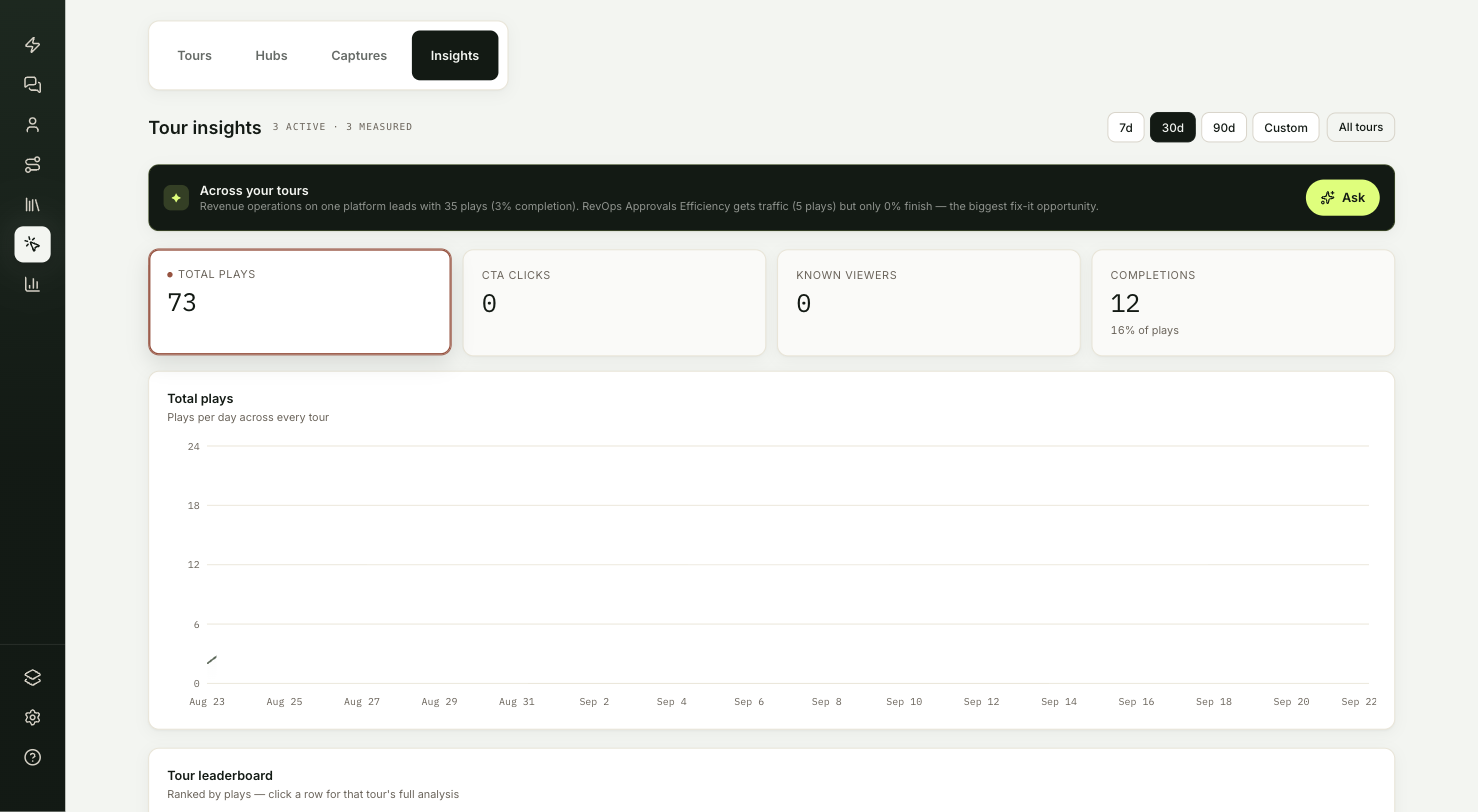
The header shows how many tours had plays in your date range. The four cards cover every tour:
| Card | What it counts |
|---|---|
| Total plays | Plays across all tours. |
| CTA clicks | Clicks on a call-to-action inside a tour. |
| Known viewers | Distinct email addresses per tour, added up across tours. A viewer who watched two tours counts twice. |
| Completions | Plays that reached the end of the tour, with the share of plays. |
The Tour leaderboard ranks tours by plays. Engaged is the share of plays that moved past the first step. Completion is the share that finished. CTA and Known are counts.
Two short lists sit below it:
- Highest completion: the best completion rates among tours with 5 or more plays.
- Most known viewers: tours with the most identified viewers, with their CTA clicks.
What does one tour's report show?
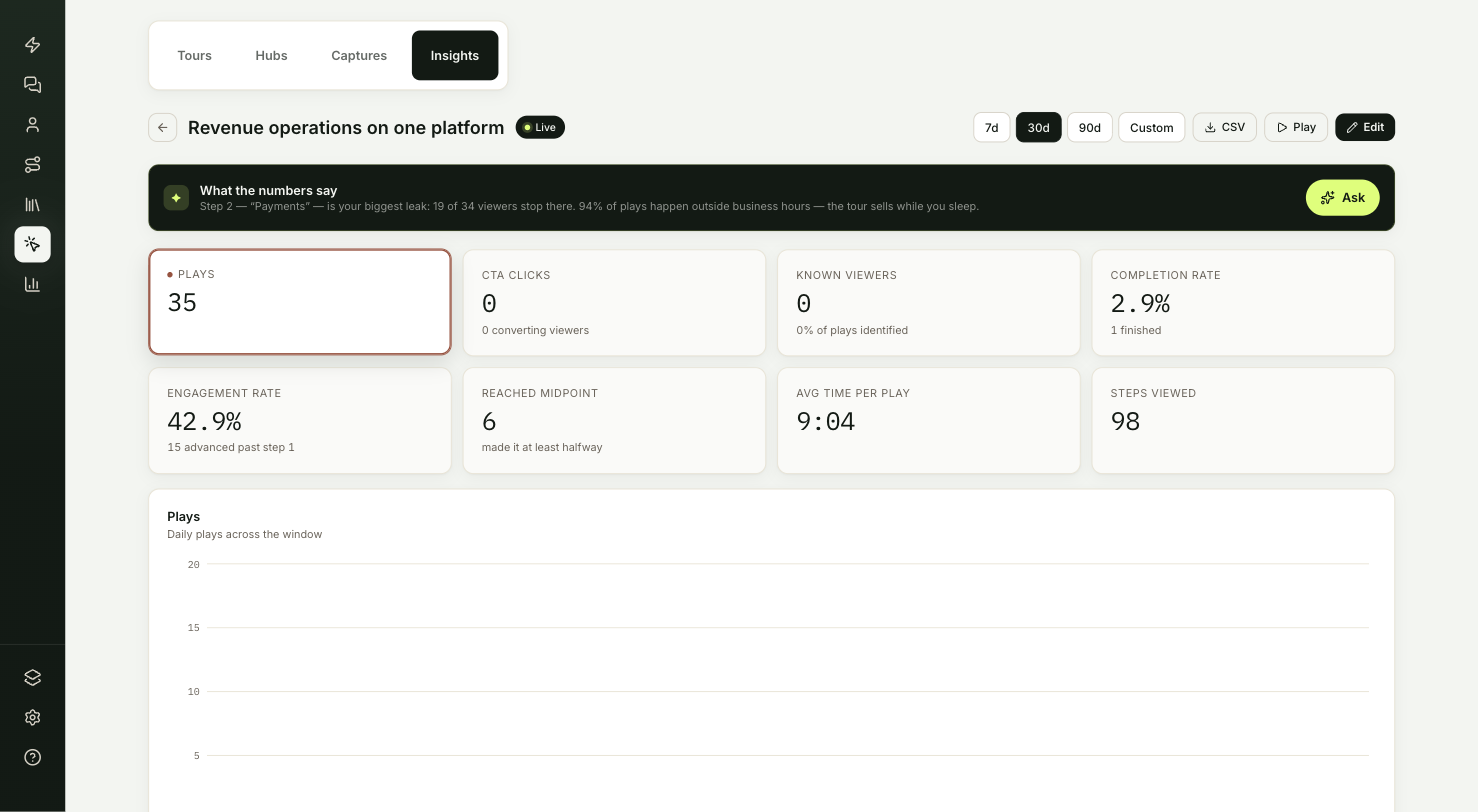
The top bar has CSV, Play and Edit. The cards come in two rows:
| Card | What it counts |
|---|---|
| Plays | Plays of this tour. |
| CTA clicks | Clicks on a call-to-action, with the number of viewers who clicked. |
| Known viewers | Plays with a known email, with the share of plays. |
| Completion rate | Share of plays that finished the tour. |
| Engagement rate | Share of plays that moved past the first step. |
| Reached midpoint | Plays that got at least halfway through the steps. |
| Avg time per play | Average time from the first to the last recorded action in a play. |
| Steps viewed | Total step views, counting revisits. |
Below the cards:
- The funnel card walks from Plays to Engaged (past step 1), Reached midpoint, Completed and Clicked a CTA.
- Step retention shows how many plays reached each step. The step with the biggest drop from the one before is flagged.
- When they watch shows plays by hour, with plays outside 9 to 5 highlighted.
- Where plays come from splits plays by where the tour was played: Embedded on site, Share link, Agent conversation, Launcher lightbox or Unknown.
- Warmest known viewers lists identified viewers by time spent, with the number of steps they saw. A dot marks viewers who finished.
- Recent plays lists every play, newest first. Select Load more to keep going.
How do you act on a tour's report?
- Fix the flagged step first. In Step retention, shorten the step with the biggest drop, or move your call-to-action ahead of it.
- Hand the warmest viewers to sales. The names under Warmest known viewers are the people who spent the most time in the tour.
How do you export plays?
Select CSV on a tour's report to download one row per play for your date range, up to the 5,000 most recent. Each row has:
- the start time
- the viewer's email, or anonymous
- where it was played
- steps viewed, and the furthest step
- whether it finished
- CTA clicks and seconds spent
Test it
- Open one of your published tours from your own site or a share link, in a private browser window. Use a network whose address isn't in your excluded list, or the play won't be recorded.
- Click through a few steps and select a call-to-action.
- Go to Tours → Insights and select the tour. Your play appears under Recent plays.
Troubleshooting
| Issue | What to check |
|---|---|
| Your own play doesn't appear | Plays started from inside ShowPilot never count, and plays from excluded addresses are dropped. Open the tour from your site or a share link, on a network that isn't excluded. |
| A tour is missing from Highest completion | That list only includes tours with 5 or more plays. |
| Known viewers looks higher than your number of people | On the all-tours view, a viewer who watched two tours counts twice. |
| The CSV is missing older plays | The export holds up to the 5,000 most recent plays in your date range. |
Frequently asked questions
Does going back to an earlier step start a new play?
No. Going back and forth between steps is still one play.
Do my own previews count?
No. Plays you start from inside ShowPilot never count, whatever address you're on.
What does Engaged mean for a tour?
A play that moved past the first step.
Related articles
Agent-led tours
Let your ShowPilot agent present a tour in chat or on a live call, answering questions as it goes, and choose where each tour opens that way.
Inbound
Where you see who your agent captured, the meetings it booked and the questions it passed to your team, and where you set up what it offers and asks.