

The Captures library
Find, sort and file every screen you've captured, group screens into collections, and build tours from them.
Every screen you capture is kept in Tours → Captures, so one good capture of your product can serve many tours. Screens from one capture session are grouped into a collection, and a collection is what ShowPilot builds a tour from. Keeping the library tidy means the next tour starts from the right screens, in the right order, at the right size.
You're in the right place when you want to find a capture, organize screens into collections, or build a tour from screens you already have.
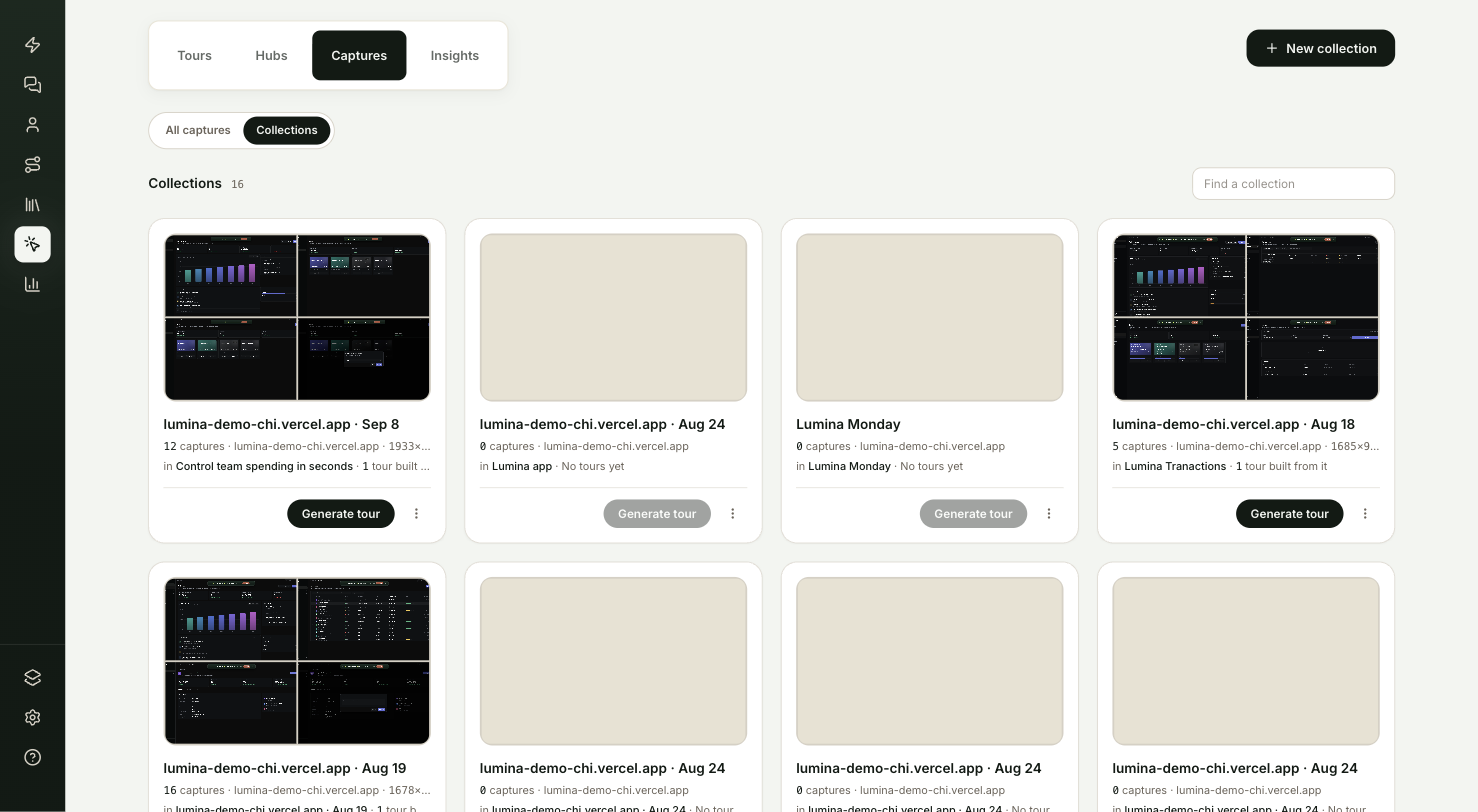
How is the Captures tab laid out?
Go to Tours → Captures. A toggle at the top shows the same screens two ways, and ShowPilot remembers the one you used last in this browser.
| View | Use it for |
|---|---|
| All captures | Every screen in your workspace, with search, filters, sorting and a grid or list layout. |
| Collections | One card per capture session or hand-built set, plus an Unfiled card for screens outside every collection. |
The New collection button sits at the top right of the tab in both views.
How do you find a capture?
All captures lists every screen. Use the controls along the top to narrow it down:
| Control | What it does |
|---|---|
| Find a capture | Searches by name. |
| Type filter | All types, HTML, Video or Image. |
| Date filter | Any time, Today, Last 7 days or Last 30 days. |
| Who captured it | Anyone, Captured by me, or any member of your team by name. |
| Sort menu | Captured (newest first), Name, Type, Collection, Captured by or Used in tours. |
| Grid or list toggle | Switches the layout. ShowPilot remembers your choice. |
In the grid, each card shows the screen, its name, the short description ShowPilot wrote when it was captured, its collection (and hub, if it has one), the capture date, who captured it and its size. A badge in the corner says how many tours use it.
In the list, the columns are Capture, Type, Size, Collection, Captured, By and Used in. Select a column heading to sort by it.
Select any capture to open its detail page. See What's on a capture's page?
What is a collection?
A collection is an ordered set of screens, usually everything from one capture session. It's the unit you build a tour from: Generate tour turns a collection into a tour, playing its screens in the collection's order.
Each collection has:
- A name, which you can change at any time.
- A viewport: the width and height every screen in it is shown at. It's set from the first shot, so every tour built from the collection plays at one size.
- An App URL: where new captures for it start.
- A home: either a hub, or the workspace library if it isn't in a hub yet.
Collection cards show a mosaic of the screens, the number of captures, the app's address, the viewport, where the collection lives ("in" a hub, or Library) and how many tours were built from it.
When you have more than six collections, a Find a collection search appears above the cards.
How do you create a collection?
Open the new collection window
Go to Tours → Captures and select New collection.
Name it and point it at your app
Enter a Name, such as "Onboarding walkthrough". Enter an App URL (optional): the page in your app where capturing should start.
If you leave the name empty, ShowPilot names the collection after your app's address.
Start capturing, or create it empty
- With a URL, the button reads Start capturing. ShowPilot opens your app in a new tab with the extension already running, and every screen you capture files into this collection. Finish brings you back to it.
- Without a URL, the button reads Create collection. You get an empty collection to fill by uploading images or moving captures in.
If the extension doesn't answer, ShowPilot opens your app anyway and shows a Capture with the extension message. Open the extension in that tab and start capturing, then select Open the collection.
How do you work inside a collection?
Open a collection from its card. The page shows the collection's name, its address and viewport, the captures in play order, and these controls:
| Control | What it does |
|---|---|
| Rename (pencil) | Changes the collection's name. |
| Collection settings (gear) | Opens the Viewport width and height and the App URL. See How do you change a collection's viewport? |
| Move to hub / Move to another hub | Moves the collection and all its captures into a hub, or back to the library. |
| Generate tour | Builds a tour from the collection. Off while the collection is empty. |
| Add to collection | Start capturing more screens from your app, or Upload image. |
| Drag handle on each capture | Reorders the captures. The order here is the order a generated tour plays. |
The line under the name reads like "12 captures · app.example.com · 1440×900". A collection with no fixed viewport says "any size".
How do you add screens to a collection?
Select Add to collection and choose one:
- Start capturing asks for the App URL (filled in from the collection's settings) and hands off to the extension. New shots file straight into this collection, and Finish brings you back.
- Upload image opens Upload to collection. Choose Upload to pick an image file from your computer, or URL to add an image from a web address. Give it a Screen name, then select Create screen.
Uploaded images behave like Image captures: they're pixels, so you anchor steps by drawing on them.
How do you put the screens in order?
Drag a capture by its handle, next to its name. The new order saves as soon as you drop it. Generate a tour after you've set the order, since a tour that already exists keeps its own order.
How do you change a collection's viewport?
Select the gear next to the name to open Collection settings:
| Setting | What it does |
|---|---|
| Viewport (Width × Height) | The size every capture in the collection conforms to. It's set from the first shot. Change it here if you resized your browser before adding more. Leave both empty for "any size". |
| App URL | Where Start capturing opens your app. |
Select Save to apply.
How do you move a collection into a hub?
Select Move to hub (or Move to another hub if it's already in one). Pick a Hub, or Library — no hub to take it out of every hub, then select Move. The collection and its captures move together, and tours already built from it keep playing. See Hubs.
What can you do with a single capture?
Every capture card in a collection has a name you can select to rename, a pencil to open its detail page, and a ⋯ menu:
| Action | What it does |
|---|---|
| Rename | Changes the capture's name. |
| Duplicate | Adds a copy, named with "copy" on the end, at the end of the same collection. Use it when you want two versions of a screen. The copy keeps the original's screen context, so edit the copy's context if the two should read differently. See Screen context. |
| Move to collection… | Moves the capture to another collection, or to Unfiled. |
| Open file | Opens the captured file in a new tab. |
| Delete capture | Removes the capture from your library. |
The menu also shows the capture's pixel size.
What happens when you move a capture?
The move window lists your other collections with their size. Because every collection plays at one viewport:
- A collection marked will conform accepts the capture, and HTML captures re-render at that collection's size.
- A collection marked size doesn't match can't take the capture, because an image or video can't be re-rendered at a different size.
- Unfiled takes the capture out of every collection.
Select a collection, then Move.
What happens when you delete a capture?
If no tour uses the capture, deleting it removes it from your library for good. If tours use it, those tours keep their own copy and keep playing. Only the library capture goes, which means you can no longer edit its screen context from those tours.
Deleting a collection is gentler: its captures stay in the library as unfiled, tours built from it keep playing, and only the grouping goes.
What does a collection card's menu do?
On the Collections view, each card has a Generate tour button and a ⋯ menu with:
- Rename
- Move to hub (or Move to another hub)
- Delete collection
The Unfiled card holds every capture that isn't in a collection. Open it to file those captures into collections with Move to collection…. You can't rename, reorder or generate from Unfiled.
What's on a capture's page?
Select a capture to open its page. It shows:
- The capture itself, at its captured size. HTML captures show the live copy of the page, and video captures play.
- Previous and next arrows with a position such as "3 / 12", walking the collection in play order.
- A back link to the capture's collection.
For video captures, the page also shows where the take is in processing:
| Stage | What it means |
|---|---|
| Uploaded | The take is saved. |
| Transcribed | The audio has been turned into text. |
| Scenes cut | The take has been split into scenes. |
| Storyboard drafted | ShowPilot has drafted a storyboard from the scenes. |
The next stage to finish is outlined, and the page updates when you refresh. When the take was recorded with its click trail, the page notes that scenes will be cut on your clicks. A take saved before processing was available says it isn't linked to processing.
How do you build a tour from a collection?
Select Generate tour on a collection card or at the top of a collection. What happens depends on where the collection lives:
- In a hub: the hub page assembles the tour, then opens it in the builder, where ShowPilot plans the story with you and writes the copy.
- In the library: ShowPilot asks What kind of tour is this? and for an optional brief, then assembles and opens the tour.
You can also start from Tours → New tour and choose From a collection. See Create a tour.
Test it
Your library is in order when:
- You open Tours → Captures and switch to Collections.
- You open a collection and drag one capture to a new position.
- You reload the page, and the capture stays where you put it.
- You switch to All captures, set Sort to Used in tours, and the screens your tours rely on are at the top.
Troubleshooting
| Issue | What to check |
|---|---|
| Generate tour is greyed out | The collection is empty. Add captures first. |
| A collection is marked size doesn't match when moving | Image and video captures can't change size. Move them to a collection with the same viewport, or to Unfiled. |
| New captures look cropped or stretched in a collection | Your browser was a different size from the collection's viewport. Check Collection settings, or capture again at the collection's size. |
| Find a collection isn't showing | It appears once you have more than six collections. |
| A capture isn't in any collection | Look in the Unfiled card, then file it with Move to collection…. |
| A video take is stuck on one stage | Refresh the page. Processing a long take can take a few minutes. |
FAQ
Can I use one screen in more than one tour?
Yes. Captures stay in your library, and the Used in column shows which tours use each one. Each tour keeps its own copy, so editing a screen's steps in one tour doesn't change another.
Does reordering a collection change tours I already built?
No. The collection's order is the order a new tour starts in. Reorder screens inside an existing tour from the builder's storyboard.
Can I get a deleted capture back?
No. Delete capture can't be undone. Tours that used it keep playing from their own copy.
Can I add a screenshot I took outside the extension?
Yes. Open the collection, select Add to collection, choose Upload image, and pick the file or paste its web address.
What's the difference between a collection and a hub?
A collection groups captured screens. A hub groups tours and gives them one link and an optional checklist. A collection can live inside a hub, and tours built from it land in that hub. See Hubs.
Related articles
Capture with the extension
Install ShowPilot Capture in Chrome, choose a capture type and a destination, and click or record through your app to make the screens every tour is built from.
Screen context
Tell ShowPilot and your agent what each captured screen shows, so tours are written accurately and your agent presents every screen with the right facts.