

Share links
Copy a tour or hub link with campaign tracking, see how it previews in a message, post it to social, and control how it opens.
A tour does its work when a buyer sees it: in a rep's follow-up email, in a campaign, or in a post. Every published tour and every live hub has a public link you can send anywhere, and each link carries campaign tags so the visits show up in your own analytics. Links always serve the published version, so you can keep editing without viewers seeing unfinished work.
You're in the right place when you want to send a tour or hub by link, check how that link previews, post it to social, or stop a link working.
What do you need before you share?
- A tour: it must be published. Until it is, the share window is dimmed with Publish to share and an Open in builder button. See Publish and revisions.
- A hub: at least one tour in it must be published, and the hub's Serving must be on. Until then, the window says Publish a tour to share, because hubs never publish themselves.
A new or updated link goes live within a minute of publishing.
Where do you open the share window?
| From | How |
|---|---|
| The Tours tab | Select Share on the tour's card. |
| A hub's Tours tab | Open the tour's ⋯ menu and select Share tour link. |
| A hub's header | Select Share to share the hub link. |
The window has three tabs: Link, Embed and Social. This article covers Link and Social. For Embed, see Embed a tour.
What's on the Link tab?
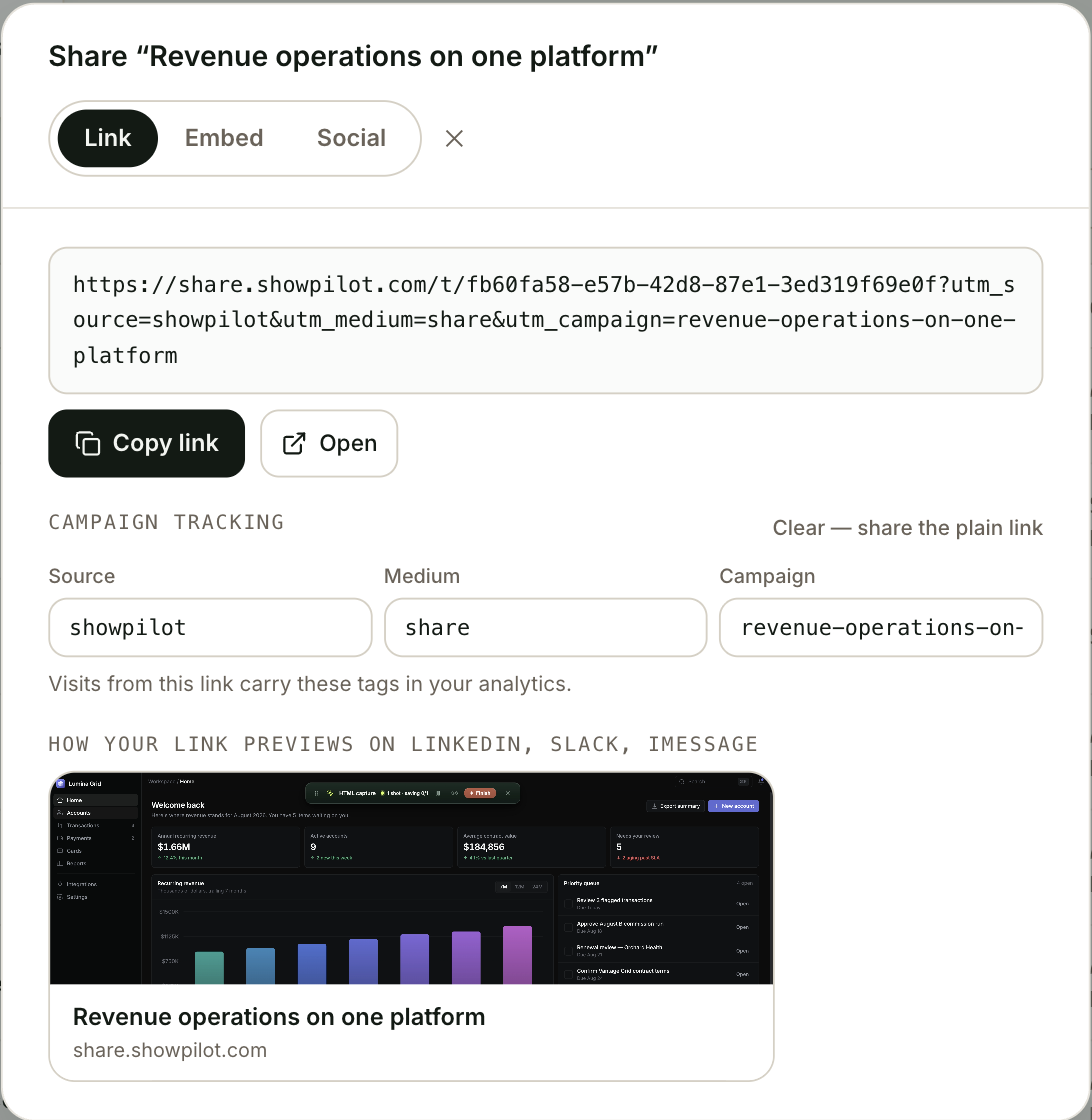
| Control | What it does |
|---|---|
| The link | The public address. Tour links contain /t/, and hub links contain /p/. It includes your campaign tags when there are any. |
| Copy link | Copies the link with its tags. |
| Open | Opens the plain link in a new tab. |
| Source | The utm_source tag. Starts as showpilot. |
| Medium | The utm_medium tag. Starts as share. |
| Campaign | The utm_campaign tag. Starts as the tour's name, in lowercase with hyphens. |
| Clear — share the plain link | Empties all three tags, so the link has none. Only shown while a tag is filled in. |
| Link preview | How the link looks when it's pasted into LinkedIn, Slack or iMessage. |
Change the tags for each place you share the link, so visits show up by campaign in your analytics. Empty fields are left off the link. Under the fields, a line says whether visits from this link carry tags or not.
The tags live only in the link you copy. ShowPilot doesn't store them, so the window starts with the defaults each time you open it.
How does the link preview get made?
When someone pastes a tour link into a message, the preview uses the tour's published title and description, with its first screen as the image. If the tour has no description, the preview says "An interactive tour of" the tour's name, followed by "click through it yourself".
A hub link's preview uses the hub's name and description, with the first screen of the tour the hub opens first.
To change the preview, change the tour's Name or Description in the builder's Settings and publish again, or edit the hub's name and description from the pencil on the hub page. See Tour settings.
Apps that show previews keep a copy of the first one they fetch. After a change, a message app may show the old preview for a while.
What's on the Social tab?
| Control | What it does |
|---|---|
| Your message | The text to post with the link. It starts with a short line inviting people to click through the tour, with no sign-up. |
| Opens LinkedIn's share window with your link. LinkedIn builds the post from the link preview, so paste your message into it yourself. | |
| X | Opens a new post with your message and the link. |
| Opens Facebook's share window with your link. Paste your message into it yourself. | |
| Opens a new email with the subject "An interactive tour of" the tour's name, and your message and the link as the body. | |
| Copy message + link | Copies the message and the link together, for anywhere else. |
The link carries the campaign tags from the Link tab. Set them there first.
How do you share a tour by link?
Publish the tour
In the builder, select Publish. If the tour is already live and you've made changes, select Update.
Open the share window
On the Tours tab, select Share on the tour's card.
Set the campaign tags
On Link, set Source, Medium and Campaign for where you're sharing it, or select Clear — share the plain link.
Copy it
Select Copy link and paste it into your email, message or page. To post it, use the Social tab instead.
What does a viewer see when they open the link?
A tour link opens the tour full-page, on a dark background, starting from the first screen. A hub link opens the hub page. See Hubs.
- Only published, serving tours load. A draft tour, a tour with Serving off, or a link with a typo all show the same not-found page. Nobody can tell a draft exists from its link.
- Viewers get the published version. Edits you haven't published don't appear.
- Search engines don't list the page. Tour and hub pages ask search engines not to index them.
- Your Tag Manager container can run there. If you've turned on Google Tag Manager for hosted pages in Settings → Tracking, it loads on tour and hub pages, so your analytics and ad pixels see the visit. See Run Tag Manager on hosted pages.
- Plays count in Insights under the share link source. See Tour analytics.
Can you change how a link opens?
Yes, by adding an option to the end of the link. This changes that one link only. The tour's and hub's own settings stay as they are.
| Add to the link | What it does |
|---|---|
?present=chat | Opens with your agent presenting in text. |
?present=live | Opens on the Join the tour cover, for a voice and avatar call with your agent. |
?present=self | Opens the self-guided tour player, even if the tour or hub is set to agent-led. |
?embed=1 | The tour on its own with no page around it, for putting in a frame. Always self-guided. |
If the link already has campaign tags, add the option with & instead of ?, for example &present=chat.
The agent-led options only work when the tour is in a hub and your workspace has a published agent. Otherwise the link plays self-guided. See Agent-led tours.
How do you stop a link working?
- One tour: in the builder, open Settings, turn off Serving, then select Update. The tour's link and embeds stop serving. Turn it back on to restore them.
- A hub link: on the hub's Settings tab, turn off Serving. The tours' own links stay live. See Hub settings.
- For good: delete the tour. Its share links stop working, and this can't be undone.
Test it
Your link is ready to send when:
- You open it in a private browser window, so you see it the way a new viewer does.
- The tour plays from the first screen, or the hub opens on the tour you chose to open first.
- You paste it into a message to yourself, and the preview shows the right title and screen.
- After a test visit, the play appears in Tours → Insights.
Troubleshooting
| Issue | What to check |
|---|---|
| The window says Publish to share | The tour isn't published. Select Open in builder and publish it. |
| The window says Publish a tour to share | No tour in the hub is published yet. |
| The link shows a not-found page | The tour is a draft, its Serving is off, or the hub's Serving is off. |
| The link shows an old version | Links serve the published revision. Select Update in the builder, then wait up to a minute. |
| The preview shows an old title or image | Message apps keep previews for a while. Check the published Name and Description in the tour's Settings. |
| The link opens agent-led when I wanted self-guided | Add ?present=self, or change How the tour link opens in the tour's Settings. |
| Visits don't show my campaign in analytics | Check the tags are filled in before you select Copy link. |
FAQ
Will viewers see my unpublished edits?
No. Links always serve the published version, so you can keep editing.
Can I unpublish a tour?
There's no unpublish button. Turn off Serving in the tour's Settings and select Update; the link stops serving and the tour stays published for when you turn it back on.
Can I share a link without tracking tags?
Yes. On the Link tab, select Clear — share the plain link.
Can I put a password or a form in front of a tour?
No. Tour links are open to anyone who has them. Turn off Serving when a link should stop working.
Does a tour link show the hub's checklist?
No. A tour link plays that one tour. Share the hub link to give viewers the checklist and the other tours.
Where do I see who opened the link?
Go to Tours → Insights and open the tour. See Tour analytics.
Related articles
Publish a tour and manage revisions
Publish a tour so viewers can see it, push later edits with Update, roll back to an earlier revision, and take a tour down with Serving.
Embed a tour
Put a tour on your own pages inline or behind a button, wire it to your own buttons, and listen to its events in your analytics.