

Add and manage content
Upload files or import them from the web, check each item's details and thumbnail, and share or delete items from your library.
Your best sales material only helps when a buyer sees it. Adding it to your library puts your case studies and product videos within reach of every agent, so the right piece can land in front of a buyer at the moment they ask for it.
This article covers adding items to your library, editing an item's details, and sharing or deleting it.
What can you add?
| Type | How to add it |
|---|---|
| Videos | Upload the file, or paste a link to a video hosted on a video platform. |
| PDFs | Upload the file, or paste a link to it. |
| Images | Upload the file, or paste a link to it. |
Files you upload can be up to 2 GB each. For a longer video, host it on a video platform and add the link instead.
Web pages don't go in Content. To teach your agent from a page, add it on the agent's Training tab. See Add knowledge.
You're in the right place when you have files your agent should be able to show visitors.
What do you need before you start?
- The files, or links to them.
How do you add content?
Open the Add content panel
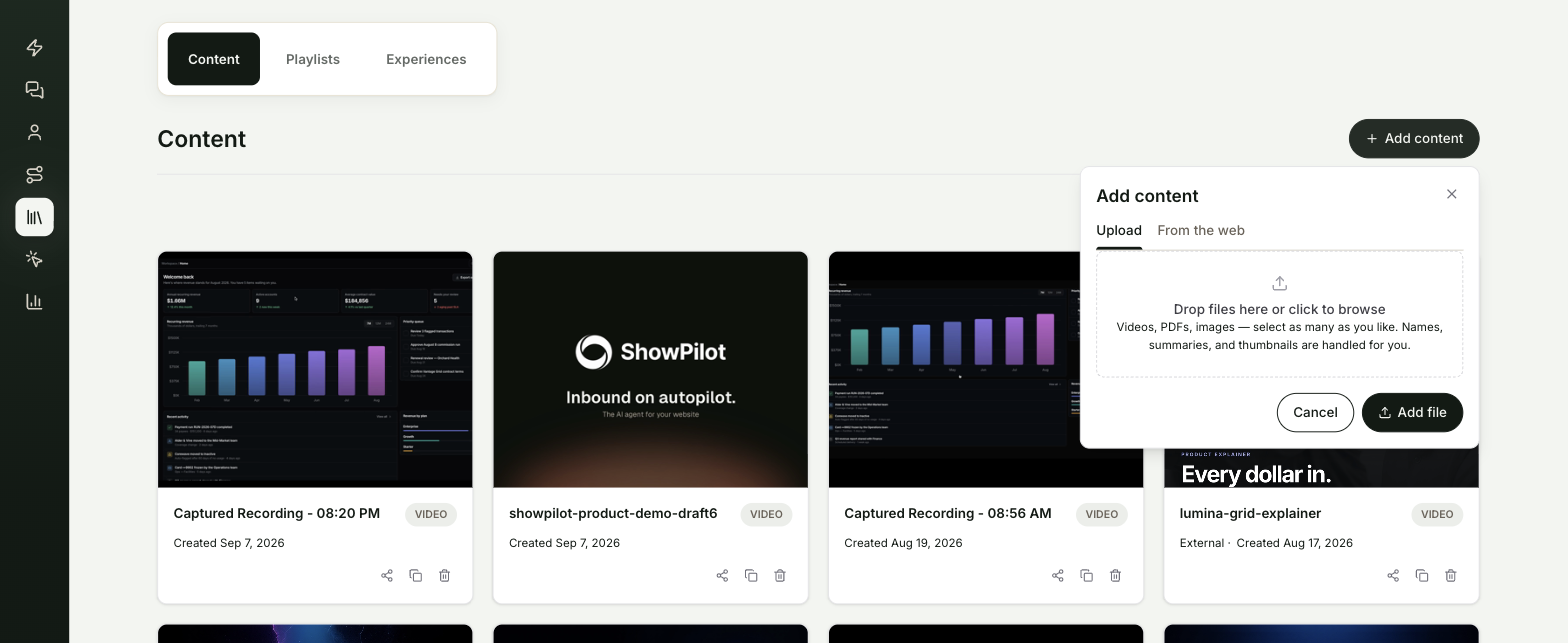
Go to Content. On the Content tab, select Add content. The panel has two tabs: Upload and From the web.
Upload files
On Upload, drop files onto the panel, or click it to browse. You can pick as many as you like. Select Add file to upload them. With several files, the button reads Add N files. Each file shows its progress, and a file over 2 GB shows an error instead of uploading.
Or import from the web
On From the web, use the Content links box:
- To import specific files, paste links to them, one per line. Select Import.
- To find files on your site, paste your website address and select Scan site for files. ShowPilot lists the files it found, all checked. Uncheck any you don't want, or use Select all and Select none. Then select Import N files.
Imports run in the background. A bar at the top of the Content tab shows Importing content with how many items have finished. If any item can't be imported, the bar lists it with the reason.
Let ShowPilot fill in the details
You don't need to name or describe each item. ShowPilot gives each one a name and a thumbnail. It also writes a summary the agent reads, and transcribes videos, so the agent knows what each item covers.
How do you edit an item?
Select an item on the Content tab to open its detail page. The preview is on the left and the details are on the right. Select Save at the top of the page to keep your changes.
| Field | What it does |
|---|---|
| Asset Friendly Name | The name visitors and your team see. Required. |
| Asset Description | What the item covers. The agent's summary is rewritten from the name and description after you save. |
| Thumbnail | Made for you from the file. Select Override thumbnail to upload your own image, or Remove override to go back to the automatic one. |
| Asset Type | The kind of item, such as Video or PDF. Set for you when you add the item. |
| Asset URL | Where the file lives. Select Copy Link to copy it. Select Replace asset to upload a new file in place of the old one. |
The top of the form also shows when the item was added and who added it. Some items also show an estimated Reading Time.
To rename an item without opening it, double-click its name on the Content tab.
How do you find items in a big library?
At the top right of the Content tab:
- The sort menu orders items by Newest first, Oldest first, Name (A-Z) or Type.
- The round button next to it switches between grid view and list view.
ShowPilot remembers both choices in your browser.
How do you share one item?
Select the share icon on the item's card, or on its row in list view. A Share panel opens with a working link, ready to send:
- The link. Select Copy link, or Open to see it.
- Embed on a page. Select Copy code to paste the item onto a web page.
- Post it. Suggested text for a post. Select Copy, or share straight to LinkedIn, X or Email.
Behind the link is an experience, open to everyone and guided by one of your agents. The panel names the agent under the item's name. To change the agent or add a lead form, select Customize — agent, access, embed design. See Share content with an experience.
How do you delete an item?
Open the item and select Delete, or select the trash icon on its card. Confirm with Delete asset. The item is removed from your library, and this can't be undone.
Test it
Your new item is ready when:
- It appears on the Content tab with a thumbnail.
- You add it to your agent's default playlist. See Build a playlist.
- On your agent, ask about the topic the item covers. The agent suggests it or opens it.
Troubleshooting
| Issue | What to check |
|---|---|
| A file won't upload | Files over 2 GB can't be uploaded. Host long videos on a video platform and paste the link instead. |
| Scan site for files finds only web pages | The scan lists files, not pages. Pages belong on the agent's Training tab. |
| An imported item never appears | Check the bar at the top of the Content tab. Items that couldn't be imported are listed with the reason. |
| The thumbnail doesn't fit the item | Open the item and select Override thumbnail. |
| The Share panel says you need an agent | Sharing needs an agent to guide the link. Create one under Agents, then share again. |
Frequently asked questions
Do I have to write a description for every item?
No. ShowPilot writes a summary for the agent on its own. A short description of your own helps when the file's contents don't make its purpose obvious.
Can I replace a file without losing the item?
Yes. Open the item and select Replace asset, then select Save. The item keeps its place in every playlist.
Does sharing an item publish anything?
Yes. Share publishes an experience for the item so the link works straight away. It is open to everyone until you change Who can see it on the experience.