

Content library
The short path from your files to an agent that suggests them, with links to the full guide for each step.
The content library puts your best sales material in front of the right visitor at the right point in a conversation. Your agent suggests material from a playlist you choose, so buyers get the case study or overview that fits what they just asked.
This article is the short path from a file on your computer to an agent that suggests it. Each step links to its full guide.
Where do you find the content library?
The Content section in the sidebar holds the files your agents can show visitors. It has three tabs:
| Tab | Use it for |
|---|---|
| Content | Single items. See Add and manage content. |
| Playlists | Ordered groups of items. Each agent draws on one playlist when it suggests something to read or watch. See Build a playlist. |
| Experiences | Shareable links. See Share content with an experience. |
For how the agent picks and shows content, see How content works.
What do you need before you start?
- The files you want to share, or links to them.
- An agent. See Create an agent.
How do you get from a file to an agent that suggests it?
Add content items
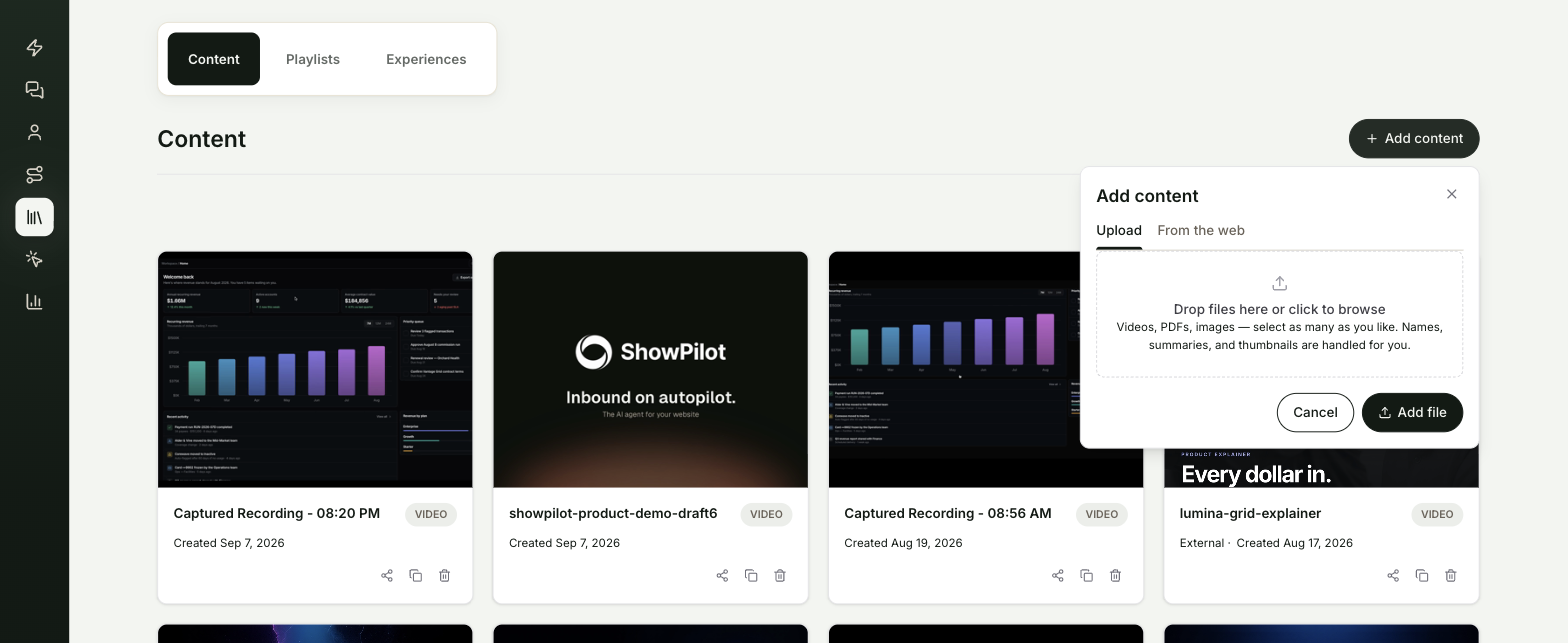
Go to Content and select Add content. On Upload, drop files in and select Add file. On From the web, paste links under Content links and select Import, or paste your website address and select Scan site for files. Files over 2 GB can't be uploaded, so host long videos elsewhere and add the link instead.
ShowPilot fills in each item's name and summary for you, and picks a thumbnail. See Add and manage content.
Check an item's details
Select an item to open it. You can change its Asset Friendly Name, Asset Description, Thumbnail and link, then select Save.
Create a playlist
Open the Playlists tab. Describe the playlist you want under What playlist do you want to build? and select AI playlist, or select New playlist to start empty. See Build a playlist.
Choose the items and their order
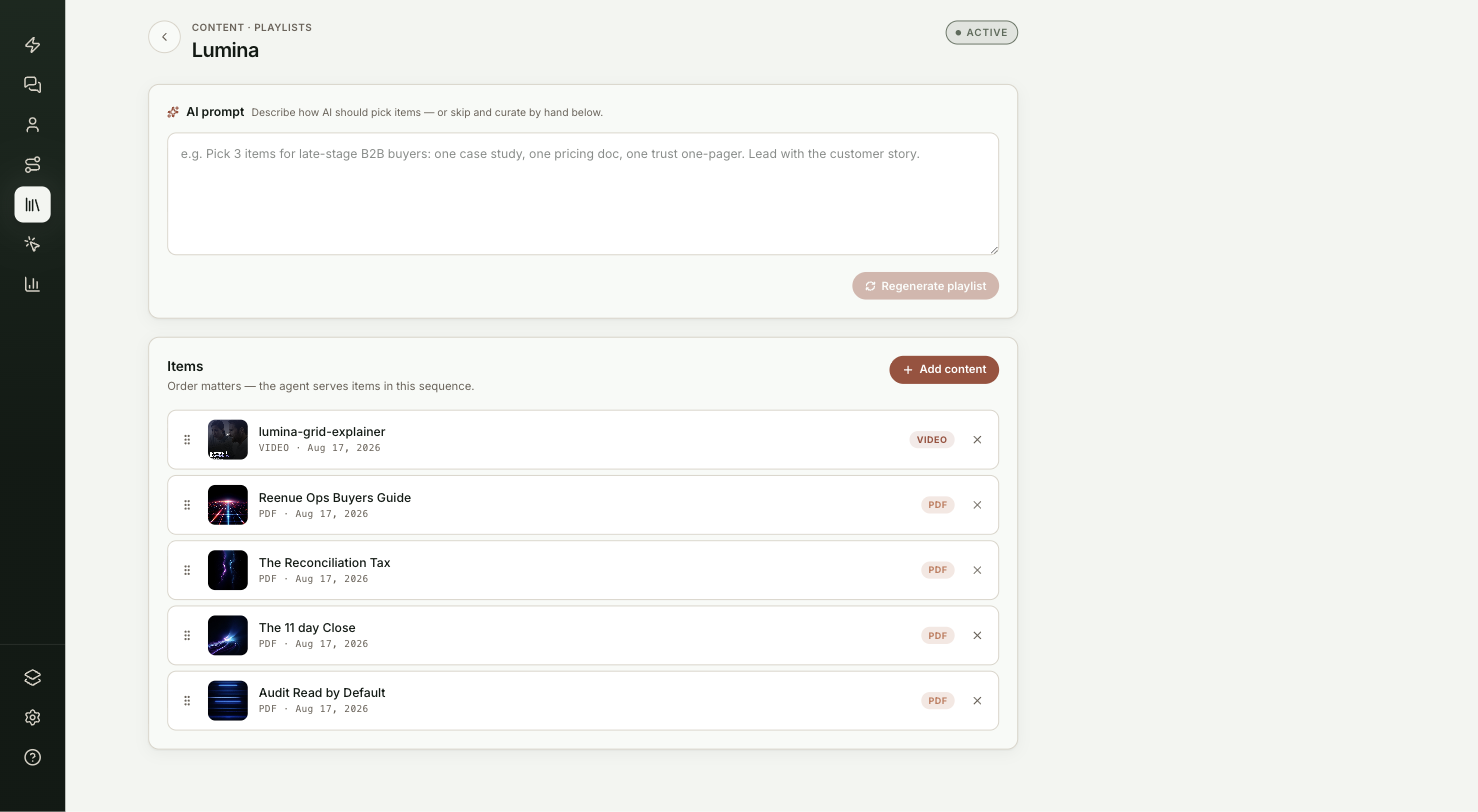
Under Items, select Add content and pick from your Library or from your published Tours. Drag items to reorder them. To remove an item, select its remove icon. The item stays in your library.
Make the playlist active
New playlists start as Draft. Select the Draft toggle at the top of the playlist to switch it to Active.
Give it to an agent
Open the agent's Persona tab and find Default content playlist. Pick the playlist from the list, then select Publish.
Test it
Your playlist is ready when the agent reaches for it on its own:
- Select Preview on your site at the top of the agent editor.
- Ask the agent about a topic one of your playlist items covers.
- The agent suggests that item.
Troubleshooting
| Issue | What to check |
|---|---|
| The playlist isn't in the agent's list | Check that it exists on the Playlists tab and is Active. Draft playlists only appear when you have no active ones. |
| Open content has nothing to pick | The agent needs a default content playlist with at least one item. |
| A file won't upload | Files over 2 GB can't be uploaded. Host long videos elsewhere and add the link instead. |
| The agent still uses the old playlist | Changing which playlist an agent uses needs a publish. |
Frequently asked questions
Can I add a tour to a playlist?
Yes. Under Items, select Add content and pick from your published Tours.
Does removing an item from a playlist delete it?
No. The item stays in your library.
Do playlist edits need a publish?
Changes to the items inside a playlist reach visitors right away. Switching an agent to a different playlist needs a publish.