

Build a playlist
Create a playlist by hand or from a prompt, then set it as an agent's default content.
A playlist decides which of your material an agent puts in front of buyers. Instead of every agent drawing on your whole library, each one works from a focused set, such as proof for late-stage buyers or overviews for first-time visitors. The buyer gets the piece that fits, and your team controls what gets shown.
This article covers building a playlist and giving it to an agent.
What is a playlist?
A playlist is an ordered list of items from your Content library. It can also hold your published tours. Each agent uses one playlist as its Default content playlist, and a playlist can be shared as a link through an experience.
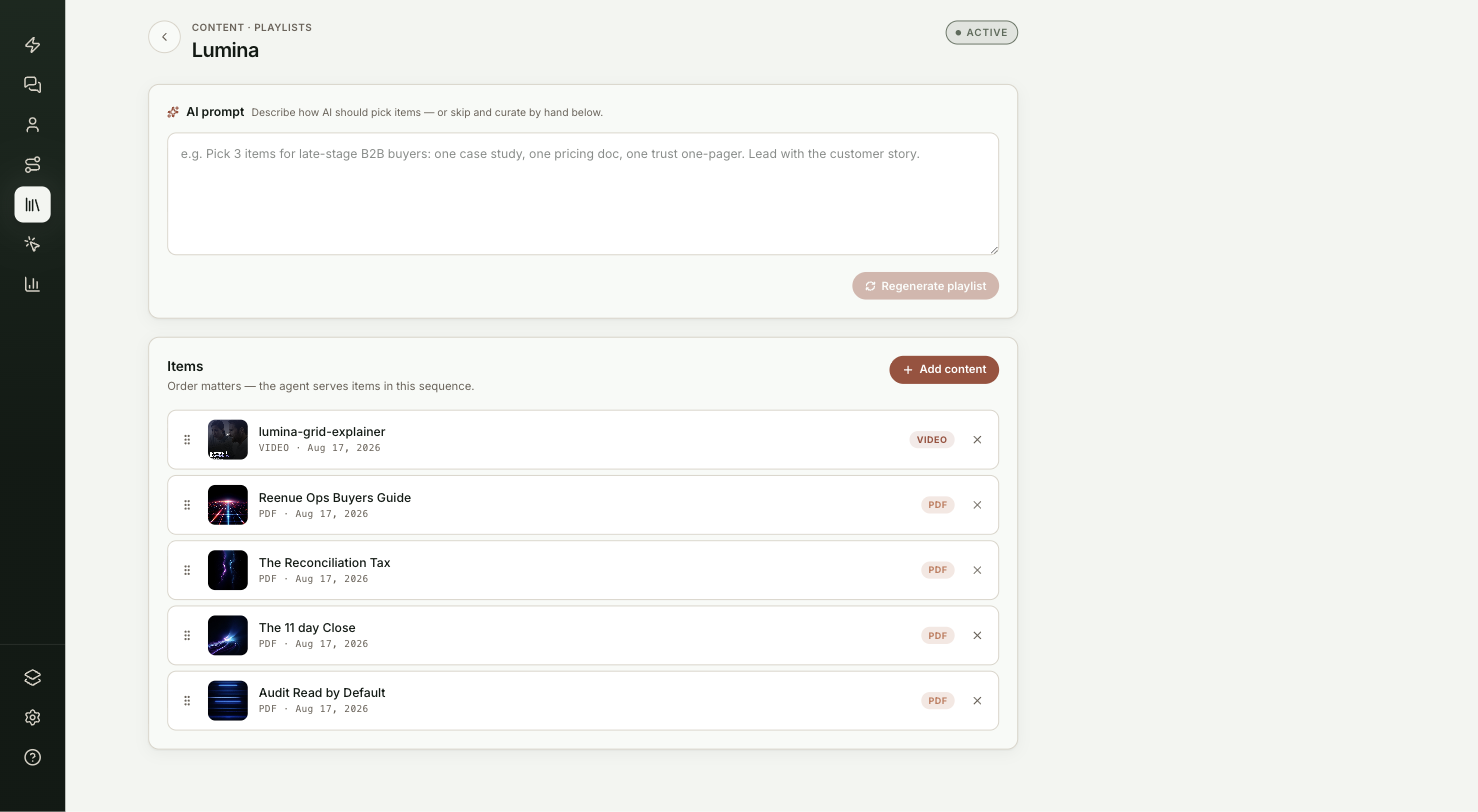
You're in the right place when you want to choose what your agent shows visitors, and in what order.
Where do you find playlists?
Go to Content and open the Playlists tab. Each row shows the playlist's name and how many items it has. Playlists made from a prompt carry an AI badge and show the prompt instead of the count.
- Use All, Active and Draft above the list to filter it.
- Type in Search playlists… to find one by name.
What do you need before you start?
- Items in your library. See Add and manage content.
How do you build a playlist?
Create the playlist
On the Playlists tab, pick one way to start:
- Describe it. Type what you want in the box under What playlist do you want to build?, then select AI playlist. The chips below the box give you a starting sentence to edit. ShowPilot names the playlist, picks items from your library and opens it.
- Start empty. Select New playlist. An empty Untitled playlist opens.
To rename a playlist, double-click its name at the top of the page.
Generate or regenerate the items (optional)
Every playlist has a prompt box at the top, whether you started from a prompt or not. Describe how the items should be picked, for example which buyers it's for and what to lead with. Then select Generate playlist.
If the playlist already has items, the button reads Regenerate playlist. ShowPilot asks Replace the current items? first. Select Regenerate to replace them, or Keep as is to cancel. Open Why these items under the box to read why ShowPilot picked what it did.
Generating picks from your library only. Add tours by hand in the next step.
Add, reorder and remove items
Under Items, select Add content. Pick from the Library tab or the Tours tab, which lists your published tours. Select as many as you like, then select Add N items.
- Reorder by dragging an item by its handle.
- Remove an item with its remove icon. The item stays in your library.
The order matters. Put the item you most want a visitor to see first.
Make it active
New playlists start as Draft. Select the Draft toggle at the top right of the playlist to switch it to Active.
Active and Draft control where the playlist is offered. When you pick a default playlist for an agent, the list shows only active playlists, unless none are active. A draft playlist that is already set on an agent keeps working.
Give it to an agent
Open the agent's Persona tab and find Default content playlist. Pick the playlist from the list, then select Publish.
To make a new playlist from here, select New playlist, type a name under Name your new playlist and select Create. ShowPilot sets it on the agent and opens it so you can add items.
Once a playlist is set, select Edit to open it, or the trash icon to take it off the agent. The playlist stays in your library.
How does the agent use the order?
The order is the sequence the agent follows when it walks a visitor through the playlist. When an experience shares a playlist, the first item opens first and the agent moves on through the rest as the visitor engages.
In a conversation on your site, the agent picks the item that fits the visitor's question best. It can reach any item in the playlist. See How content works.
Test it
Your playlist is ready when the agent reaches for it on its own:
- Select Preview on your site at the top of the agent editor.
- Ask the agent about a topic one of your playlist items covers.
- The agent suggests that item or opens it.
Troubleshooting
| Issue | What to check |
|---|---|
| The playlist isn't in the agent's list | Check it is Active. Draft playlists only appear when you have no active ones. |
| The agent still uses the old playlist | Changing which playlist an agent uses needs a publish. |
| Generate playlist picked nothing | Generating picks from your library. Add items on the Content tab first, then generate again. |
| A tour isn't in the Tours list | Only published tours appear. Publish the tour, then add it. See Share and embed a tour. |
| An item you shared is in a playlist you didn't touch | Sharing an item through an experience adds it to the guiding agent's default playlist, so the agent can open it. If the agent had none, ShowPilot creates one named after the agent. |
Frequently asked questions
Do playlist edits need a publish?
Changes to the items inside a playlist reach visitors right away. Switching an agent to a different playlist needs a publish.
Does removing an item from a playlist delete it?
No. The item stays in your library.
Can several agents use the same playlist?
Yes. Set it as the Default content playlist on each agent.
How do I delete a playlist?
On the Playlists tab, open the More actions menu on the playlist's row and select Delete. It is deleted straight away, without a confirmation step. Any agent that used it is left with no default playlist.
Can I share a playlist as a link?
Yes. Select the share icon on the playlist's row, or build an experience from it for more control. See Share content with an experience.